

- Top 1—Hasleo Backup Suite Free (Recommended)
- Top 2—Macrium Reflect Free (Unavailable)
- Top 3—EaseUS Todo Backup Free
- Top 4—AOMEI Backupper Standard
- Feature Comparison
- Frequently Asked Questions
- Summary
In the digital age, backup and restore features are essential for data security. An efficient backup solution enables organizations to respond to unexpected incidents, minimizing both system downtime and data loss. Therefore, choosing a secure and reliable backup and restore tool is particularly crucial for every Windows user. Next, we will recommend 4 top-tier free backup software solutions and provide an in-depth analysis of each across four key dimensions: functionality, performance, compatibility, and ease of use. This will help you effortlessly build a robust data protection system and confidently address various potential data risks.
Top 1—Hasleo Backup Suite Free (Recommended)
Hasleo Backup Suite Free is professional yet free backup software developed by Hasleo. It supports flexible backup and restore for systems, disks/partitions, and files/folders, in addition to powerful disk and partition cloning capabilities. By combining backup, restore, and cloning into a single package, this all-in-one solution has become a trusted data protection tool for users worldwide.
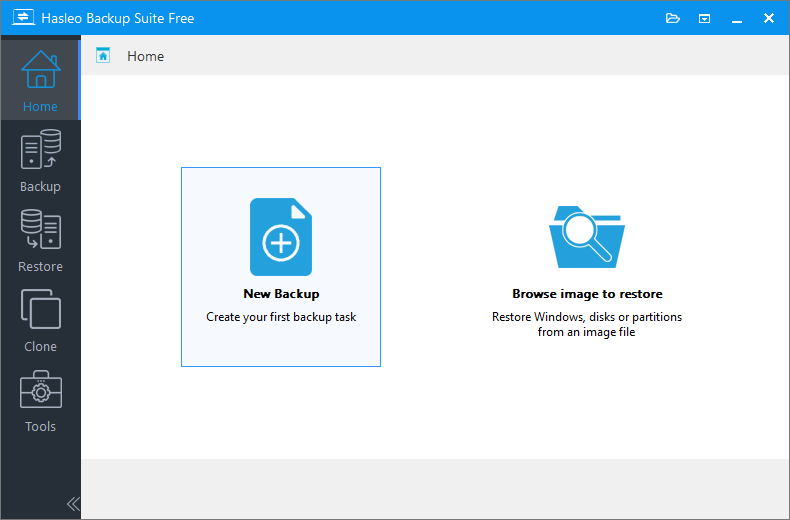
In terms of functionality, Hasleo Backup Suite Free integrates powerful and comprehensive features to meet a wide range of user needs.
Advantages:
- Backup Feature: Supports system, disk/partition, and file/folder backups. It offers flexible image retention policies and integrates features like image compression, encryption, filtering, and splitting. Enables configuration of intelligent backup schedules for automated periodic task performance. Provides 3 backup modes—full, incremental, and differential—allowing users to flexibly select options based on requirements for efficient and precise backup completion.
- Restore Feature: Supports restoring systems, disks/partitions, and files/folders from backup images or backup tasks. Integrated with intelligent restore technology, it automatically extracts the necessary data blocks for a complete backup chain when restoring incremental and differential backups, eliminating manual intervention. Additionally, it offers the advanced Delta Restore feature free of charge for ultra-fast image recovery.
- Cloning Feature: Supports cloning of disks or partitions, offering a sector-by-sector cloning mode to ensure complete data replication. During the cloning process, partition sizes can be dynamically adjusted, and multiple partition alignment modes (1M, 4K, Cylinder, and None) are supported to optimize storage performance.
- Built-in Utility Toolkit: Provides a suite of tools for creating WinPE emergency disks, managing image files, wiping disks, viewing logs, and more, serving as your reliable data protection management.
Limitations:
- The free edition does not support universal restore.
In terms of performance, Hasleo Backup Suite Free delivers equally outstanding results.
Advantages:
- Ultimate Backup, Restore, and Cloning Speeds: By employing advanced disk shadow copy and intelligent read technologies, the software fully leverages your hardware's performance. This significantly boosts task performance efficiency while ensuring data integrity.
- Efficient Compression and Encryption Algorithms: The software supports 4 compression levels (None, Low, Medium, High), allowing users to flexibly balance storage space and backup speed. It also provides AES-256 encryption, which secures sensitive data with minimal performance impact while maintaining high compression ratios.
- Intelligent Incremental and Differential Backup Engine: Rapidly locates and processes only changed content during incremental or differential backups, significantly saving storage space and task time. Daily backup operations are completed quickly, reducing energy consumption.
- Extremely Low System Resource Consumption: The software is deeply engineered to intelligently manage CPU and memory during operations, preventing system lag and ensuring other applications run smoothly.
- Other: It also features stable task performance and outstanding performance in handling large files.
Limitations:
- The free version lacks support for Delta clone technology.
It excels in usability and user experience and is dedicated to making complex backup, restore, and cloning tasks simple and intuitive.
Advantages:
- Clear and Intuitive User Interface: The software features a modern and streamlined graphical interface. All core functions, such as "System Backup" and "Disk Cloning", are clearly presented with intuitive icons and text. Users can quickly locate the desired functions without any learning curve, making it very user-friendly.
- Guided Task Workflow: Whether performing backups, restores, or clones, clear step-by-step guidance ensures effortless completion of the entire process—from selecting source data and choosing a destination to configuring backup options—for a smooth, stress-free operation.
- Smart Default Settings: To facilitate quick setup, the software provides optimized default configurations for various tasks. Beginner users can directly apply recommended settings to initiate backups with a single click. Meanwhile, advanced users retain the ability to customize parameters, striking an excellent balance between simplicity and flexibility.
- Real-time Status Updates: During task performance, the software provides clear, real-time information such as task progress percentage, elapsed time, and estimated remaining time. This allows users to instantly grasp the task status, reducing uncertainty and wait-time anxiety.
- Thoughtful Reminders and Alerts: Before performing critical operations (such as overwriting disks), the software provides clear prompts and warnings to effectively prevent data loss caused by incorrect actions, adding an extra layer of protection for user data security.
Limitations:
- The interface is not beautiful enough.
Its comprehensive compatibility with various Windows versions, file systems, and storage hardware underlines its value as a professional-grade tool.
Advantages:
- Comprehensive OS Support: The free edition is fully compatible with all mainstream Windows operating systems, from the classic Windows 7 to the latest Windows 11, ensuring seamless operation across your environment.
- Advanced Hardware and Boot Architecture Compatibility: Fully compatible with both UEFI and Legacy BIOS boot modes, correctly handles GPT and MBR partition formats, and seamlessly adapts to all hardware configurations, both new and old. It also provides native support for Windows on x86, x64, and ARM64 architectures.
- Extensive File System Support: It supports FAT12, FAT16, FAT32, exFAT, NTFS, and other file systems.
- Extensive Device Compatibility: Supports various storage devices including HDD, SSD, USB, Thunderbolt, and Dynamic Disk, among others.
- Robust Virtualization Compatibility: The generated backup images can be mounted as virtual disks, greatly promoting virtual machine creation and data recovery verification.
Limitations:
- The free edition does not support the ReFS file system.
How to use Hasleo Backup Suite Free to back up Windows 11?
Step 1. Download, install, and run Hasleo Backup Suite Free. Click the "Backup" button in the navigation bar, then click "System Backup" in the action area.
Step 2. Hasleo Backup Suite Free will automatically select all partitions required for backing up Windows 11. Simply customize the task name, description, destination, and backup options as needed, then click "Proceed".
Step 3. After clicking the "Proceed" button, Hasleo Backup Suite Free will begin backing up your Windows 11 system to the specified location.
Top 2—Macrium Reflect Free (Unavailable)
Macrium Reflect Free is a Windows backup solution developed by Paramount Software Limited in the UK. This robust program gained a substantial global user base. Nevertheless, official support for the free edition was discontinued on January 1, 2024, meaning it no longer receives feature updates or security patches. Currently, only existing users who completed installation before discontinuation may continue using their original version. However, security vulnerabilities cannot be patched, so use with caution.
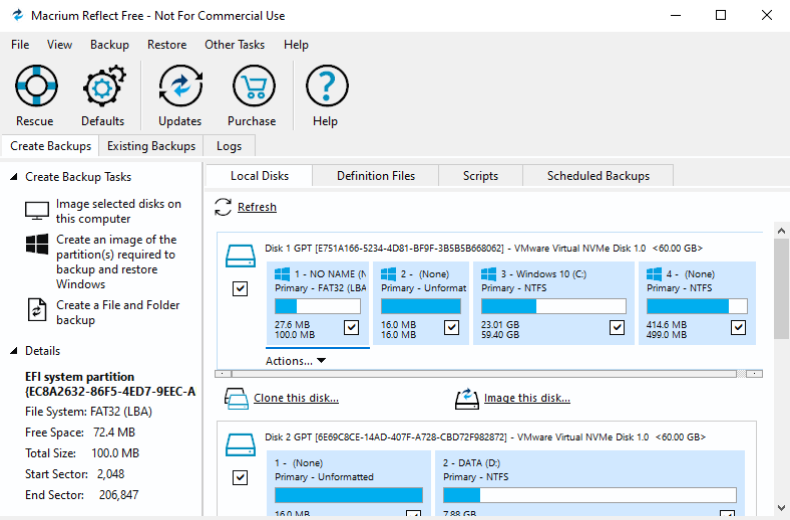
Functionally, Macrium Reflect Free was widely praised throughout its lifecycle for the reliability of its core backup and restore capabilities.
Advantages:
- Backup Feature: Supports system, disk/partition backups. Allows splitting (manual) and filtering of images, and enables scheduling of backups for automated performance. Offers full and differential backup modes.
- Restore Feature: Supports system, disk/partition restoration, and provides universal restoration capabilities.
- Cloning Feature: Supports cloning disks or partitions and allows for manual adjustment of partition sizes during the process.
- Other: Supports creating rescue media to build a bootable USB drive, disc, or ISO file for quick system recovery.
Limitations:
- Does not support consolidating differential backups or merging them into full backups; the management of old backup chains requires manual deletion.
- It provides a universal restore function, but requires manual operation. The process is complex, and success is not guaranteed.
- Does not support file backup/restore, incremental backup, compression, encryption.
In terms of performance, its key advantages and limitations can be summarized as follows.
Advantages:
- High Backup and Restore Efficiency: The software employs mature disk imaging technology to intelligently read data blocks, accelerating backup and restore processes.
- Efficient Differential Backup: This method quickly captures and backs up only the changed data, saving time and storage space.
- Well-managed Resource utilization: During backup operations, the software typically maintains CPU and memory usage at reasonable levels.
- Other: It also features outstanding stability.
Limitations:
- Delta/Fast clone technology is not supported
- Does not provide encryption algorithms or compression technology.
- Does not support incremental backup technology.
Regarding usability and user experience, it offers a good experience in the short term. However, with updates having ceased, it will struggle to meet future demands.
Advantages:
- Function-Driven Interface: Not a minimalist design, this interface prioritizes efficiency with high information density and a compact layout.
- Guided Task Workflow: Provides clear, professional step-by-step guidance during backup, restore operations, progressively leading users to advanced configuration settings.
- Smart Default Configuration: Provides partially optimized and secure default settings during backups to ensure novice users can complete backup tasks, while granting technical users full control over advanced features.
- Real-time Status Updates: During operation, the software provides clear, real-time information such as task progress percentage, elapsed time, and estimated remaining time.
- Thoughtful Reminders and Alerts: Before performing critical operations like disk overwriting, the software provides clear prompts and warnings to effectively prevent data loss caused by incorrect actions.
Limitations:
- The interface lacks simplicity, presenting information overload for new users and creating a certain learning curve.
- Advanced configuration requires users to own a certain level of technical technology
Although Macrium Reflect Free being unsupported and unavailable for purchase, its short-term compatibility remains reliable, while long-term potential risks persist.
Advantages:
- Comprehensive OS support: Compatible with all mainstream Windows operating systems from Windows 7 to the latest Windows 11.
- Advanced Hardware and Boot Compatibility: Supports both UEFI and Legacy BIOS boot modes with accurately handling GPT and MBR partition formats. It also provides full support Windows x86/x64 architectures.
- Supported Multiple File Systems: Supports NTFS, FAT32, exFAT, and more.
- Extensive Device Compatibility: Supports storage devices including HDD, SSD, USB, CD, DVD, and more.
- Virtualization Compatibility: The created backup image can be mounted as a virtual disk.
Limitations:
- Does not support the ReFS file system.
- Compatibility with Windows 7 requires installation of Service Pack 1.
- Does not support the Windows ARM64 architecture.
- Mount the backup image as a virtual disk in read-only mode.
How to use Macrium Reflect Free to back up Windows 11?
Step 1. Run Macrium Reflect Free and select "Backup" in the upper-left corner of the program's main interface.
Step 2. Click "Backup Windows..." and the software will automatically select the partitions required for backing up Windows 11.
Step 3. Select the path where you want to save the image. It is also recommended that you customize the file name and configure advanced options.
Step 4. Click "Next" to verify the system partition and backup path, then click "Finish" to begin creating the Windows 11 image.
Top 3—EaseUS Todo Backup Free
EaseUS Todo Backup Free is free data backup and recovery software developed by EaseUS Technology for individual users. It is dedicated to providing data protection solutions to prevent data loss caused by system crashes or hardware failures.
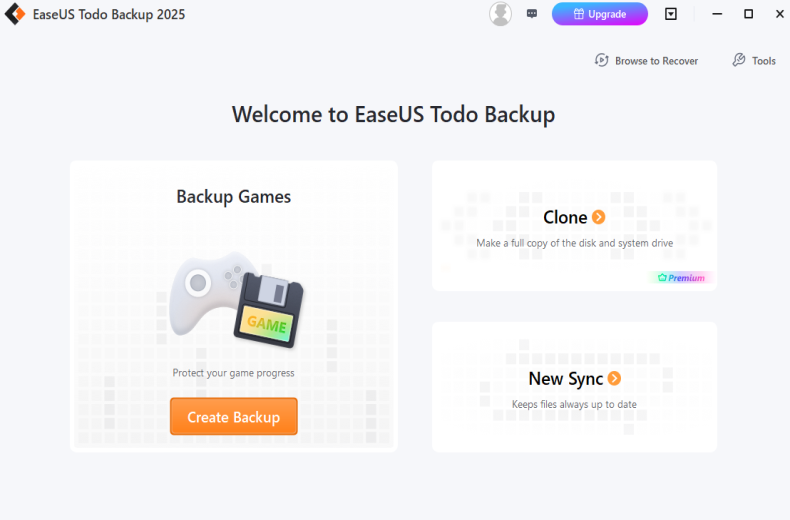
In terms of functionality, EaseUS Todo Backup Free offers backup and restore capabilities, meeting the daily data protection needs of most home users.
Advantages:
- Backup Feature: Supports system, disk/partition, and file backups with image retention policies. Users can flexibly configure encryption and backup schedules, selecting full, incremental, or differential backup modes to meet diverse data protection requirements.
- Restore Feature: Supports restoring systems, disks/partitions, and files, with intelligent incremental and differential backup restoration.
- Other: Supports creating WinPE emergency disks.
Limitations:
- Does not support universal restore.
- Does not provide image filtering or splitting.
- Does not support backup schedules.
- Does not support disk or partition cloning.
In terms of performance, EaseUS Todo Backup Free delivers outstanding capabilities while balancing functionality with resource usage.
Advantages:
- Fast Backup and Restore Speeds: Utilizes intelligent sector backup technology, which by default only backs up sectors containing data, thereby accelerating the process.
- High-Efficiency Encryption Algorithm: Supports AES-256 encryption to safeguard privacy and security.
- Intelligent Incremental and Differential Backup Engine: Supports incremental or differential backups, significantly saving time and storage space.
- Friendly background operation: During backup or restore tasks, the software maintains relatively reasonable CPU utilization. Users can continue performing light-weight operations without experiencing noticeable system lag.
- Other: The software demonstrates excellent stability during operation.
Limitations:
- Delta/Fast clone and restore technologies are not provided.
- Does not provide compression technology.
In terms of usability and user experience, EaseUS Todo Backup Free has made significant efforts.
Advantages:
- Intuitive User Interface: The main interface displays backup functions as large icons for clear and straightforward access.
- Wizard-Based Task Workflow: The software features a step-by-step wizard that guides users through the entire process of creating backup or restore tasks.
- Real-Time State Feedback: During backup and restore operations, the software displays a progress bar and the percentage of completion.
- Thoughtful Reminders and Alerts: Before performing destructive operations, a warning dialog box will pop up, prompting the user to confirm again.
Limitations:
- It displays frequent pop-up ads.
- The free edition does not provide technical support.
In terms of compatibility, EaseUS Todo Backup Free demonstrates excellent adaptability.
Advantages:
- Extensive Windows System Support: Compatible with Windows 7, Windows 8, Windows 10, and Windows 11.
- Excellent Compatibility: The software supports a wide range of Windows x86/x64 architectures.
- Support for Multiple File Systems: Supports FAT 12/16/32 and NTFS file systems.
- Extensive Device Compatibility: Supports various storage devices including HDD, SSD, USB, DVD, and more.
Limitations:
- Does not support the ReFS file system.
- Does not support the Windows ARM64 architecture.
How to use EaseUS Todo Backup Free to back up Windows 11?
Step 1. Download, install, and run EaseUS Todo Backup Free. On the main screen, click "Create Backup", then select "OS" as the backup target.
Step 2. Select the destination for backup files and configure "Options".
Step 3. Click "Backup Now" to start backing up Windows 11 with EaseUS Todo Backup Free.
Top 4—AOMEI Backupper Standard
AOMEI Backupper Standard is free backup software developed by AOMEI Technology. With its beautiful interface and reliable performance, it remains one of the popular Windows backup solutions on the market.
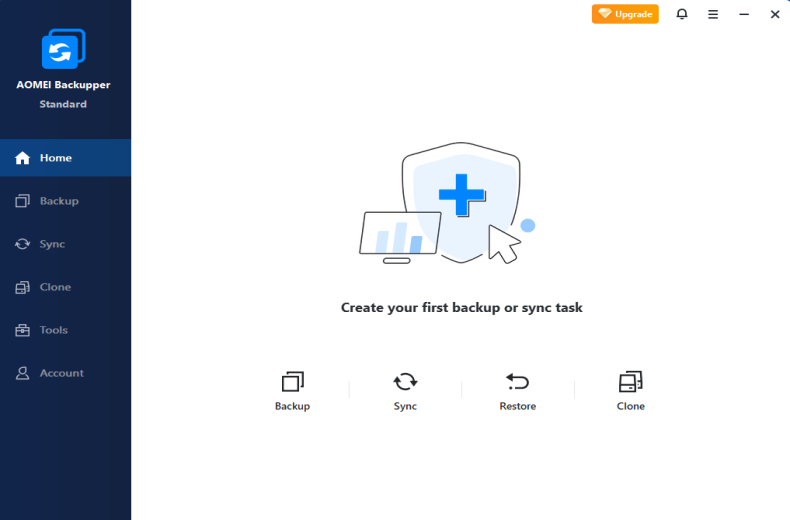
In terms of functionality, AOMEI Backupper Standard meets the daily data protection needs of most users.
Advantages:
- Backup Feature: Supports system, disk/partition, and file backups, featuring compression and image splitting. Enables scheduling of backup tasks and offers both full and incremental backup modes.
- Restore Feature: Supports restoring systems, disks/partitions, and file backups.
- Cloning Feature Supports partition and disk cloning (data disk only), offering sector-by-sector cloning mode and 4K alignment mode.
- Toolbox: Supports creating WinPE emergency disks and viewing logs.
Limitations
- Does not support universal restoration.
- Does not provide image retention policy, encryption, filtering.
- Does not support differential backup or power plan configuration.
- Does not support resizing partitions or adjusting alignment modes.
In terms of performance, AOMEI Backupper Standard delivers fast speeds for everyday use.
Advantages:
- Fast backup and cloning speeds: It backs up only sectors that contain data and supports cloning data disks only, thereby reducing both image size and the time required.
- Provide Compression Functionality: It supports 3 compression levels (None, Normal, High) for user selection, reducing file size.
- Rapid Incremental Backup: Incremental backups only capture data blocks that have changed since the last backup, significantly reducing backup time.
- Other: Features stable processing capabilities.
Limitations:
- Delta/Fast Clone technology is not provided.
- No encryption algorithms provided.
Regarding usability and user experience, the software has the following advantages and limitations.
Advantages:
- Clear and intuitive user interface: Features a streamlined graphical interface with core functions clearly presented.
- Guided Task Flow: Provides clear, step-by-step instructions during task performance.
- Smart Default Settings: The software comes with pre-set configurations, allowing users to initiate backups with a single click.
- Real-time Status Feedback: During operation, information such as progress bars, current speed, and elapsed time will be displayed.
- Thoughtful Reminders and Alerts: The software provides clear prompts and warnings when users perform critical operations.
Limitations:
- Sometimes there are pop-up ads.
Regarding compatibility, it has the following advantages and limitations.
Advantages:
- Broad OS Support: Compatible with Windows 7 through Windows 11.
- Excellent Hardware Compatibility: Supports both UEFI and Legacy BIOS boot modes, recognizes GPT and MBR partition formats, and is compatible with Windows x86/x64 architectures.
- Support for Multiple File Systems: Supports FAT16, FAT32, and NTFS.
- Compatible with Multiple Storage Devices: Supports HDD, SSD, USB.
Limitations
- Does not support the ReFS file system.
- Does not support the ARM64 architecture.
How to use AOMEI Backupper Standard to back up Windows 11?
Step 1. Download, install, and run AOMEI Backupper Standard. Click "Backup" in the menu and select "System Backup".
Step 2. Configure the task name, backup storage location, and backup options.
Step 3. Click "Start Backup" to begin backing up Windows 11 system.
Feature Comparison
In the area of data backup, selecting a powerful yet free software solution is crucial. Hasleo Backup Suite Free, Macrium Reflect Free, EaseUS Todo Backup Free, and AOMEI Backupper Standard are 4 highly favored options. To help you make a more informed choice, we've compiled a comparative table of their core features and performance.
| Hasleo Backup Suite Free (Recommended) | Macrium Reflect Free (Unavailable) | EaseUS Todo Backup Free | AOMEI Backupper Standard | |
|---|---|---|---|---|
| System Backup/Restore |  |
|
|
|
| Disk/Partition Backup and Restore | |
|
|
|
| File/Folder Backup and Restore | |
 |
File backup/restore | File backup/restore |
| Disk Clone | |
|
|
Only supports data disk cloning |
| Partition Clone | |
|
|
|
| Incremental Backup | |
|
|
|
| Differential Backup | |
|
|
|
| Delta/Fast Restore | |
|
|
|
| Universal Restore | |
Manual | |
|
| Backup Speed | Fastest | Faster | Faster | Fast |
| Restore Speed | Fastest | Faster | Faster | Fast |
| Image Retention Policy | |
|
|
|
| Backup Schedule | |
|
|
|
| Encrypt Backup | |
|
|
|
| Compress Backup | |
|
|
|
| File Filter | |
Manual | |
|
| Split Backup Image | |
|
|
|
| Create WinPE Medium | |
|
|
|
| Support Windows ARM64 | |
|
|
|
| Technical Support | |
|
|
|
Frequently Asked Questions
A: Hasleo Backup Suite Free is highly recommended. It offers the most comprehensive features including system/disk/partition/file backup and cloning, with intuitive interface and excellent performance. Many alternatives like Macrium Reflect Free are no longer available.
A: Most free backup software is for personal/home use only. For business purposes, consider paid versions or enterprise solutions. Always check the license agreement for commercial use restrictions.
A: Without a backup, you face data loss and must reinstall Windows and applications from scratch. This takes significant time and may result in permanent data loss. Regular backups are essential.
A: Recommended backup frequency depends on your data change rate. For most users, monthly full backups with daily incremental backups works well. For critical systems or frequent changes, consider more frequent schedules.
A: Store backups on external drives or network locations separate from your system drive. This protects against hardware failures affecting both original data and backups. Some users keep offsite backups for disaster recovery.
A: Both have their uses. Incremental backup only saves changes since last backup, saving storage space. Differential backup saves changes since last full backup, making restoration simpler but uses more space. Choose based on your restore needs.
A: Free versions typically have limited universal restore capability. Hasleo Backup Suite Free requires WinPE bootable media for different hardware restoration. Paid versions usually include universal restore for easier hardware migration.
A: Yes. Creating a WinPE bootable rescue disk is essential for system recovery when Windows won't boot. All recommended tools support creating such media. Hasleo Backup Suite includes this feature in its toolkit.
Summary
This article provides a comprehensive analysis of 4 top-tier free Windows backup software solutions on the market, comparing them across multiple aspects including functionality and performance. After comprehensive evaluation, we highly recommend Hasleo Backup Suite Free. It not only offers rich and powerful features with outstanding performance but also boasts an intuitive and user-friendly interface, making it your ideal backup choice.
For full protection, we recommend using Hasleo Backup Suite Free to create a bootable WinPE emergency disk for quick system recovery when needed.
Related Articles
- How to Create Full/Differential/Incremental Backups in Windows Using Hasleo Backup Suite Free?
- How to back up and restore Windows 11 for free?
- How to clone Windows/Disk/Partition in Windows 11?
- How to set up backup schedules to automatically backup Windows?
- Best Free Windows ARM64 backup software in 2026


