

- Overview of AOMEI Backupper Standard
- Best Free Alternative to AOMEI Backupper Standard - Hasleo Backup Suite Free
- How to Back Up Windows 11/10/8/7 Using Hasleo Backup Suite Free
- Frequently Asked Questions
- Summary
While AOMEI Backupper Standard is a popular choice for home users due to its user-friendly interface and reliability, evolving user demands have made the more comprehensive and high-performing Hasleo Backup Suite Free the best alternative.
Overview of AOMEI Backupper Standard
AOMEI Backupper Standard is free backup software from AOMEI Technology. It has an attractive interface and stable functionality, making it one of the most popular Windows backup tools on the market. While its features can meet the daily data protection needs of most users, there are still some limitations. The details are as follows:
Pros:
- Supports backup and restoration of systems, disks/partitions, and files, as well as partition and disk cloning (supports data disk cloning only).
- Supports the creation of WinPE emergency disks and provides image compression and splitting functions.
- Offers fast backup and restore speed while maintaining low system resource consumption.
- Compatible with all versions from Windows 7 through Windows 11.
- User-friendly interface
Cons:
- It does not provide image encryption or file filtering functions.
- It does not provide differential backup or image retention policy.
- It does not support the adjustment of partition size and alignment mode.
- It is not compatible with the ARM64 architecture.
- It displays pop-up ads, which can be disruptive to the user experience.
Best Free Alternative to AOMEI Backupper Standard - Hasleo Backup Suite Free
Hasleo Backup Suite Free is professional, free backup software. It not only supports backup and restore of systems, disks/partitions, and files/folders, but also provides powerful disk and partition cloning functions. Known for its stability and high-speed performance, this software effectively improves work efficiency, making it a comprehensive and reliable data protection tool. Below are its notable features:
- Comprehensive and powerful: Its backup and restore features let you create system images effortlessly and recover from crashes instantly, while the cloning function promotes seamless data migration.
- Advanced technology and excellent performance: Compatible with all Windows PCs and servers, it supports Windows x86/x64 and ARM64 architectures. It boots in both UEFI and Legacy BIOS modes, ensures safe and stable program running, and operates with high efficiency and low power consumption.
- Multiple backup modes: It supports full, incremental and differential backups. Following an initial full backup, both incremental and differential backups save time and storage space by only copying the data that has changed.
- Features compression and encryption: It allows you to compress backup images to save disk space and encrypt them to protect your important data.
- Practical Toolbox: Here you can access advanced features like creating a WinPE emergency disk, merging backup images, and securely wiping disks.
- Intuitive and user-friendly interface: The interface design is clear, with the main functions immediately obvious, and guided prompts allow even beginners to get started quickly.
Through the following table, you can have a more intuitive understanding of the differences between the two software programs.
| Hasleo Backup Suite Free (Recommended) | AOMEI Backupper Standard | |
| System Backup/Restore |  |
|
| Disk/Partition Backup and Restore | |
|
| File/Folder Backup and Restore | |
File Backup/Restore |
| Disk Clone | |
Only supports data disk cloning |
| Partition Clone | |
|
| Differential Backup | |
 |
| Incremental Backup | |
|
| Delta/Fast Restore | |
|
| Backup Schedule | |
|
| Image Retention Policy | |
|
| Encrypt Backup | |
|
| File Filter | |
|
| Compress Backup | |
|
| Split Backup Image | |
|
| Create WinPE Medium | |
|
| Support Windows ARM64 | |
|
| Backup Speed | Faster | Fast |
| Restore Speed | Faster | Fast |
How to Back Up Windows 11/10/8/7 Using Hasleo Backup Suite Free
With Hasleo Backup Suite Free, you can back up your Windows system in as few as three simple steps. Its intuitive, wizard-style interface is very user-friendly and can clearly guide you through the entire process. The specific steps are as follows:
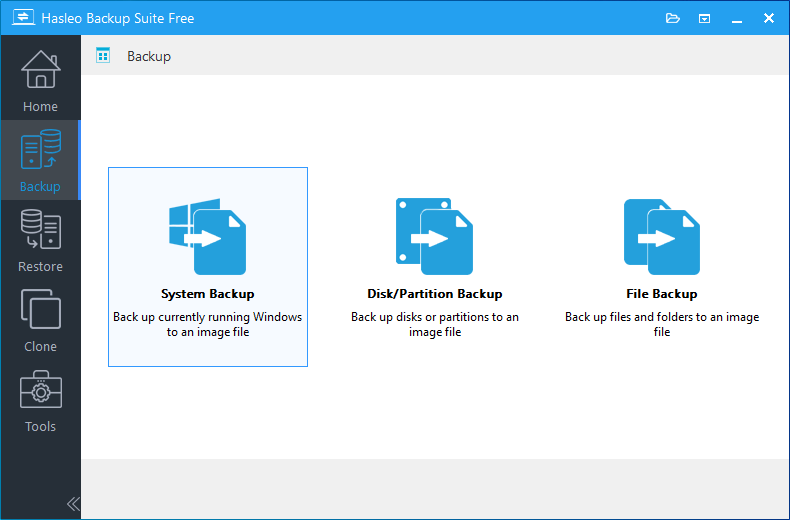
Step 1. Download, install, and run Hasleo Backup Suite Free. Click the "Backup" button in the navigation bar, then click "System Backup" button in the operation area.
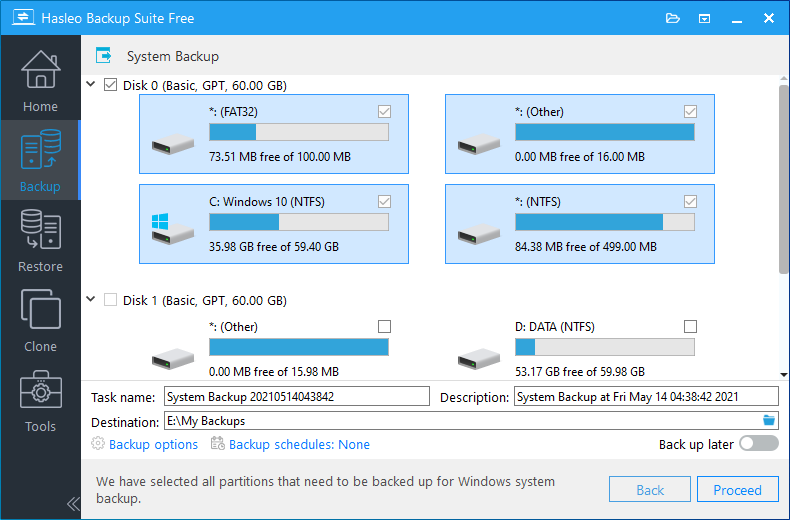
Step 2. Hasleo Backup Suite Free will automatically select all partitions required for a Windows 11/10/8/7 system backup. You only need to customize the task name, description, destination, and backup options as needed, then click the "Proceed" button.
* Tips:
- Task name: Specify a task name so that you can quickly find and manage your backup task later.
- Description: Briefly describe the purpose of the task and any other relevant information.
- Destination: Modify the destination path where the backup image files will be stored by clicking the folder icon.
- Backup options: Advanced backup settings. For more details, please refer to Backup options.
- Backup schedule: Set up backup schedules to automatically perform your backup tasks on a regular basis. For more details, please refer to Backup schedule.
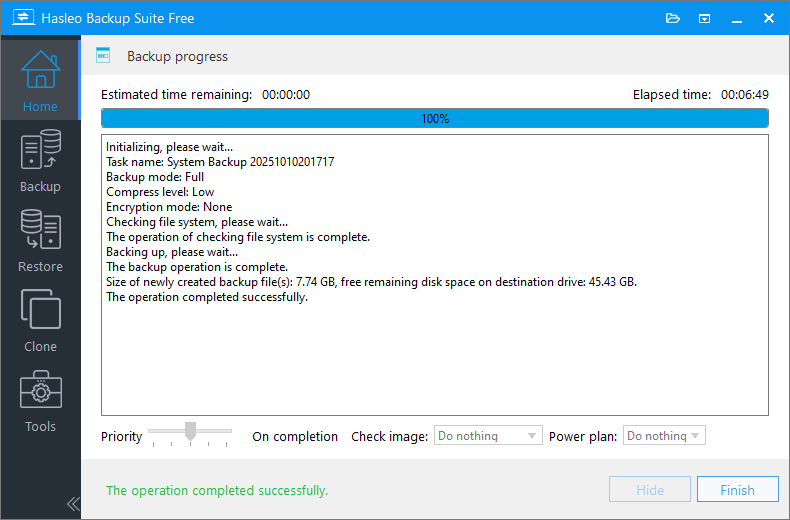
Step 3. After clicking the "Proceed" button, Hasleo Backup Suite Free will begin backing up your Windows operating system to the storage path you specify. Please note that the backup time depends on the size of the data that needs to be backed up; please be patient.
* Tips:
- Priority: Specify a priority for the backup process. A higher priority allocates more CPU time to the backup, which may cause other programs to run slower.
- Check image: Verify the integrity of the backup image files upon completion of the backup process.
- Power plan: Perform the power management action after the backup is complete.
Frequently Asked Questions
A: Hasleo Backup Suite Free is the best free alternative to AOMEI Backupper Standard. It offers more comprehensive features including differential backup, backup encryption, image retention policy, and ARM64 support.
A: Yes, Hasleo Backup Suite Free supports Windows ARM64 architecture, while AOMEI Backupper Standard does not support ARM64 devices.
A: Yes, Hasleo Backup Suite Free supports AES 128/256-bit encryption for backup images, which AOMEI Backupper Standard does not offer in its free version.
A: Yes, Hasleo Backup Suite Free supports full, incremental, and differential backup modes. AOMEI Backupper Standard does not support differential backup.
A: No, Hasleo Backup Suite Free is ad-free, while AOMEI Backupper Standard displays pop-up ads that can be disruptive to user experience.
A: Yes, Hasleo Backup Suite Free has an image retention policy feature that automatically manages backup versions. AOMEI Backupper Standard does not offer this feature.
A: Yes, Hasleo Backup Suite Free supports system, disk, and partition cloning. AOMEI Backupper Standard only supports data disk cloning in its free version.
A: Yes, Hasleo Backup Suite Free has faster backup and restore speeds compared to AOMEI Backupper Standard, while maintaining low system resource consumption.
Summary
Hasleo Backup Suite Free features an intuitive interface and a guided operating process, providing a very user-friendly experience. Compared with other competing products, it not only offers more comprehensive functions, supporting stable and reliable backup, restore, and cloning, but also excels in performance. If you are looking for a free Windows backup tool, we strongly recommend Hasleo Backup Suite Free, which will provide comprehensive and solid protection for your data.
Related Articles
- How to Create Full/Differential/Incremental Backups in Windows Using Hasleo Backup Suite Free?
- How to back up and restore Windows 11 for free?
- How to Encrypt Backup Tasks Using Hasleo Backup Suite Free?
- Best Windows Server Backup and Restore Software in 2026
- How to Use the Deduplication in Hasleo Backup Suite to Save Storage Space?


