

- Why Does the "Access is denied" Error Occur?
- Solution 1: Add the Hasleo Backup Suite Process to the Windows Defender Allowlist
- Solution 2: Add the Application to the Trusted List in Third-Party Security Software
- Frequently Asked Questions
- Conclusion
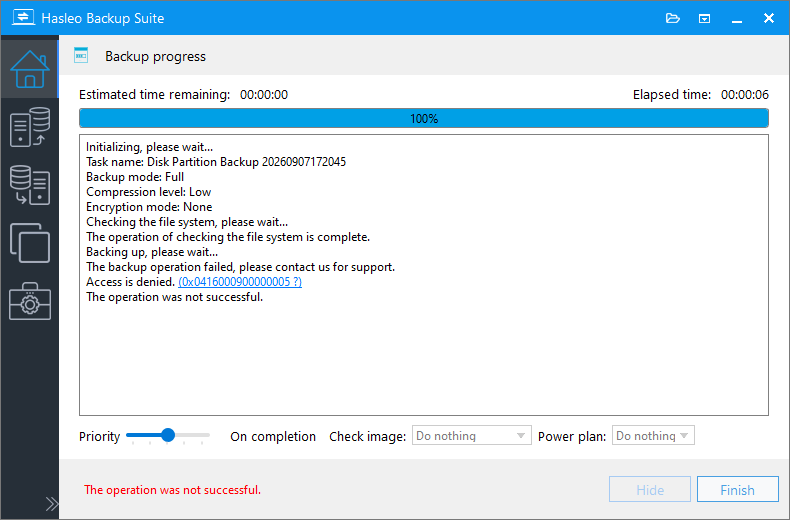
Access is denied indicates that Windows has rejected the program's write request to the destination disk, preventing the backup or restore task from completing. At this point, no data has been written to the destination. Simply resolve the permission issue and rerun the task.
Why Does the "Access is denied" Error Occur?
The "Access is denied" error (Code: 0x0416000900000005) is typically caused by write protection mechanisms in the system or security software.
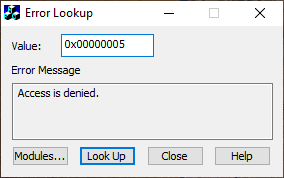
The two most common causes are:
- Windows Defender's "Controlled Folder Access": This ransomware protection feature is built into Windows Security Center. When enabled, untrusted programs cannot modify protected folders (such as Documents, Pictures, or Desktop) or write to removable storage devices. When Hasleo's background service process attempts to write to these locations, the operation is flagged as suspicious and blocked if the process is not on the trusted list.
- Real-time protection or ransomware protection in third-party antivirus software: Some security software also includes folder protection, encryption prevention, or MBR protection features, which may block Hasleo's write operations in the same way.
The solution is to add the core process of Hasleo Backup Suite to the security software's allow list (whitelist).
Solution 1: Add the Hasleo Backup Suite Process to the Windows Defender Allowlist
If you are using the built-in Windows Security Center (Windows Defender), follow these steps.
Step 1. Type Windows Security in the Windows search box and open the app.
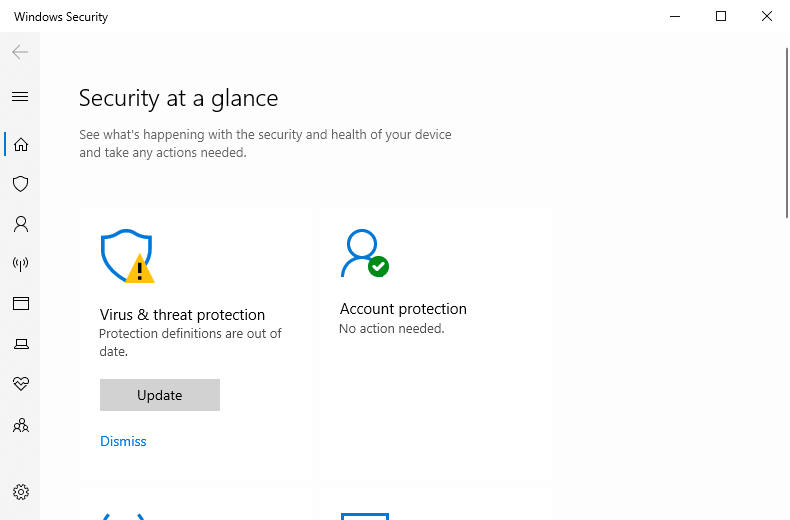
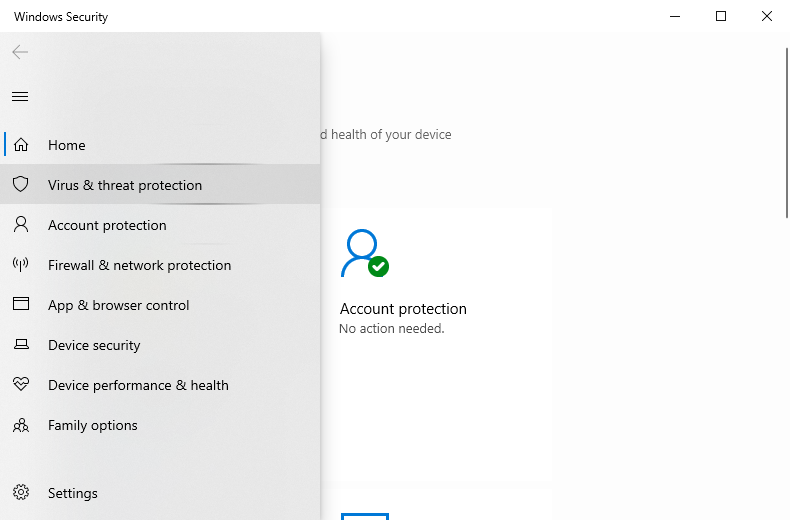
Step 2. Click Virus and threat protection in the left-hand menu.
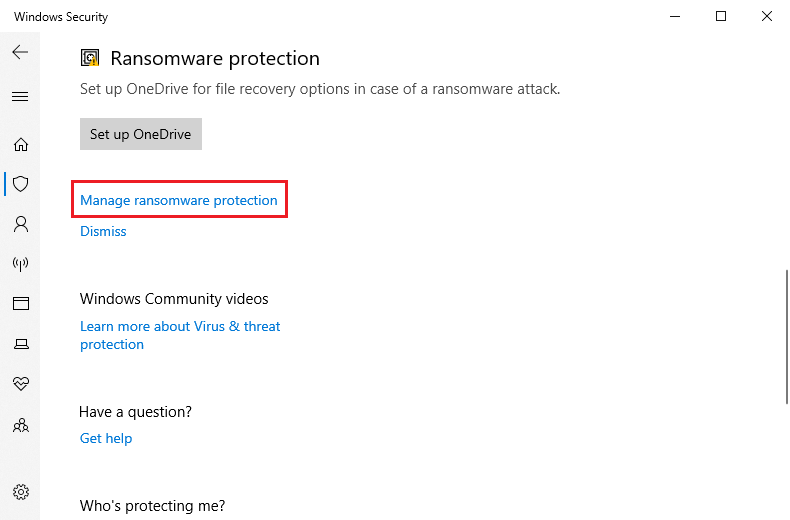
Step 3. Scroll down to the Ransomware protection section and click Managing ransomware protection.
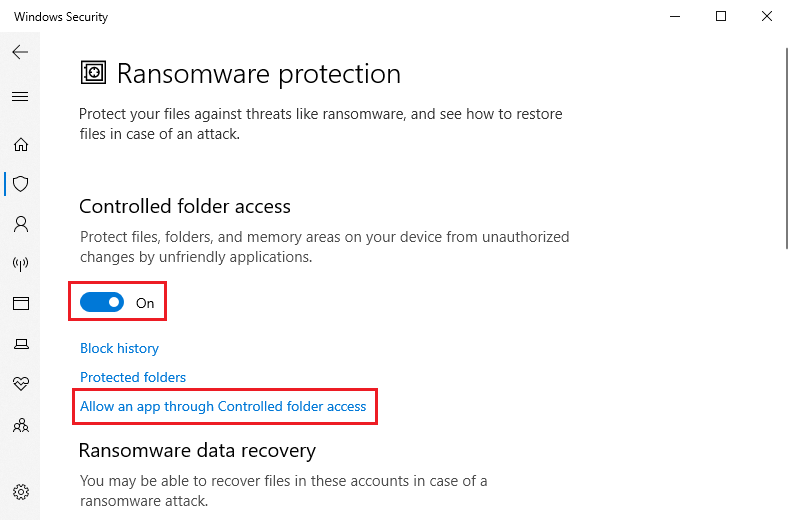
Step 4. In the Controlled folder access section, make sure this feature is turned on (if it is not turned on, this issue will not occur). Click Allow an app through Controlled folder access.
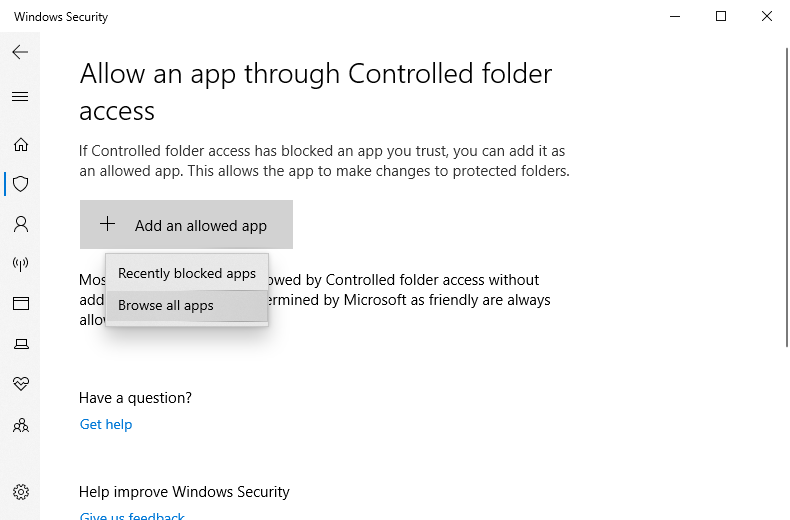
Step 5. Click Add an allowed app, then select Browse all apps.
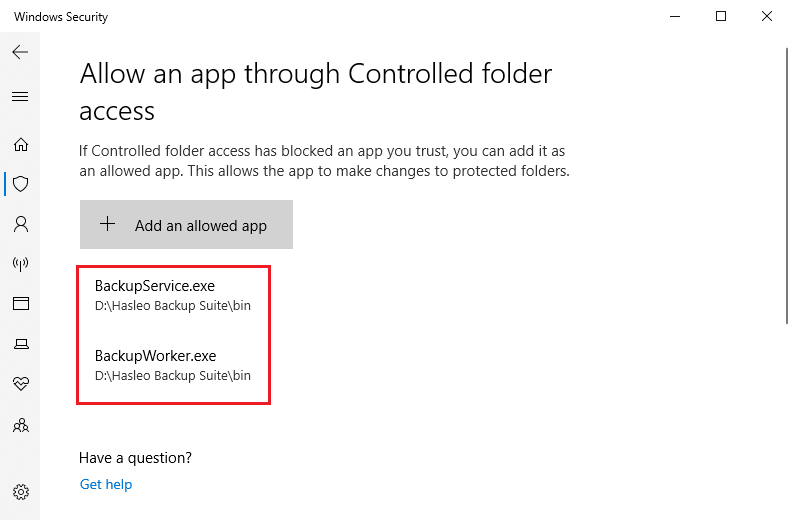
Step 6. Navigate to the installation directory of Hasleo Backup Suite (for example, C:\Program Files\Hasleo\Hasleo Backup Suite\). In the bin folder, locate executable files such as BackupService.exe and BackupWorker.exe, and add them one by one.
Step 7. After successfully adding the files, restart Hasleo Backup Suite and run the task that previously failed; the program should now execute normally.
Solution 2: Add the Application to the Trusted List in Third-Party Security Software
If Controlled Folder Access in Windows Defender is not enabled, or if the issue persists after granting permission, the block may originate from third-party security software.
The names of these settings vary slightly across different programs. Look for settings of the following types in your security software:
- Controlled Folder Access / Folder Protection
- Ransomware Protection / Anti-Encryption Protection
- Trusted Applications / Whitelist / Exclusions
Add the full paths of BackupService.exe and BackupWorker.exe to the exclusion or trust list. If the restore operation involves the system drive, some security programs also offer a "Protect MBR (Master Boot Record)" feature. It is recommended to temporarily disable this feature or add an exception for Hasleo Backup Suite.
Frequently Asked Questions 🔥
Q: I've added the Hasleo Backup Suite processes to the allowlist, but I'm still getting an error. Why?
A: Please verify that you've added all relevant processes (including at least BackupService.exe and BackupWorker.exe), and check whether multiple security programs on your system are blocking them simultaneously.
Q: Will this error cause the backup files to become corrupted?
A: No. The error occurs during the write phase, before the data has been successfully written to the destination disk, so the original backup files remain unaffected. Simply resolve the issue and rerun the task.
Q: If this error occurs during system restoration, is the solution the same as for backup?
A: Yes, the root cause is the same. Restoration also requires writing data to the disk and is subject to the same security restrictions. Please ensure the relevant Hasleo processes are allowed before restoring.
Q: Why is it recommended to add the other processes in the bin directory at the same time?
A: Hasleo's backup, restore, mount, and emergency disk functions are performed collaboratively by different processes. Allowing access to only some of them may cause other functions to be blocked; adding all of them at once reduces the need for repeated troubleshooting.
Conclusion
If error code 0x0416000900000005 (Access Denied) occurs during a backup or restore, the root cause is that Windows Defender's Controlled Folder Access or third-party antivirus software is blocking Hasleo Backup Suite from writing data to the destination disk. Once you add core processes such as BackupService.exe and BackupWorker.exe to the security software's allow list (whitelist), backup and restore operations will run normally.
Related Articles
- How to Fix "Access is denied" Error When Creating an Emergency Disk?
- How to Reduce Computer Lag During Backup - Hasleo Backup Suite Guide
- Image Protection: Protects Backup Files From Unauthorized Modification or Deletion
- How to Fix "The System Cannot Find the Device Specified" Error?
- How to Use Backup Filter Templates to Reduce Repetitive Configuration


