

- What Is Backup Filter Templates?
- How to Use Backup Filter Templates to Reduce Repetitive Configuration
- Frequently Asked Questions
- Conclusion
A new Backup Filter Templates feature has been added to Tools in Hasleo Backup Suite. You can save a set of filter rules as a template. The next time you create a task, simply select the template, and the rules will be filled in automatically — making backup task configuration more efficient.
What Is Backup Filter Templates?
The filter feature in Hasleo Backup Suite lets you exclude unwanted files and folders during backups using filter rules, reducing backup size and shortening backup time. Backup Filter Templates build on this foundation, allowing you to save a set of filter rules as a template. When creating a new backup task, simply select the template, and the filter rules are populated automatically — no need to reconfigure them one by one.
1. Templates save only the filter rules themselves; they do not include backup sources, destination paths, or scheduling plans.
2. Since different backup tasks may have different filtering requirements, templates do not apply globally.
3. For existing tasks, you must still manually apply a template in the task settings.
How to Use Backup Filter Templates to Reduce Repetitive Configuration
Create a Backup Filter Template
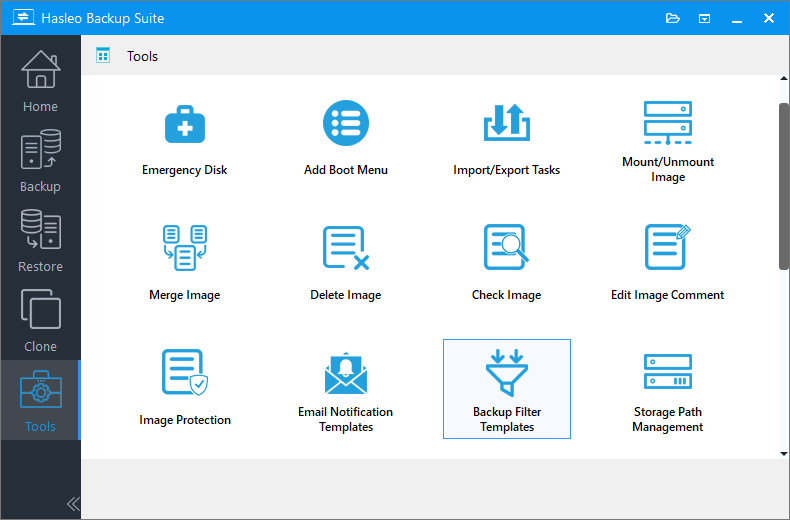
Step 1. Update Hasleo Backup Suite to the latest version and launch it. Click Tools in the left navigation bar, then select Backup Filter Templates in the main window.
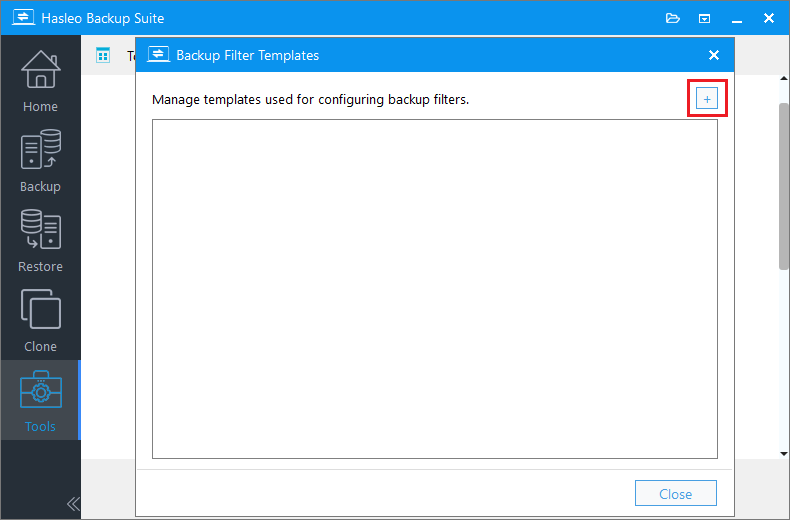
Step 2. On the page that appears, click the + sign in the upper-right corner to create a backup filter template.
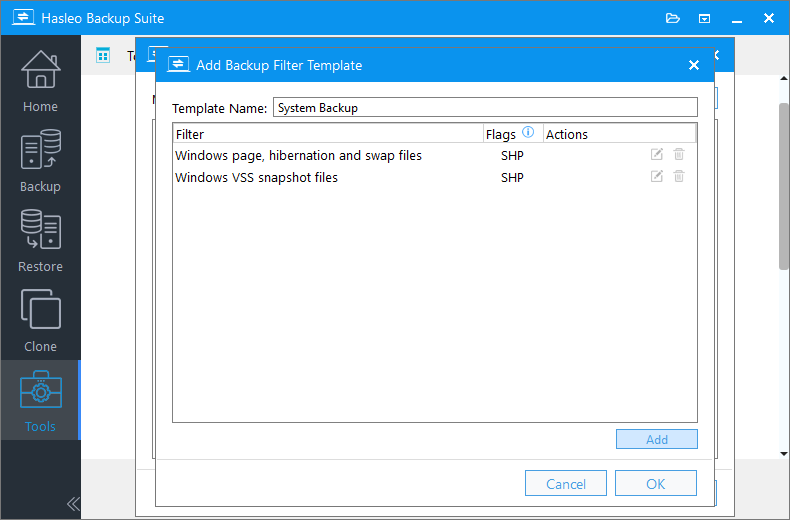
Step 3. In the configuration interface, name the template. Click Add in the lower-right corner to add the rules you want to exclude.
Step 4. Select the filter type, configure the corresponding information, and click OK to save.
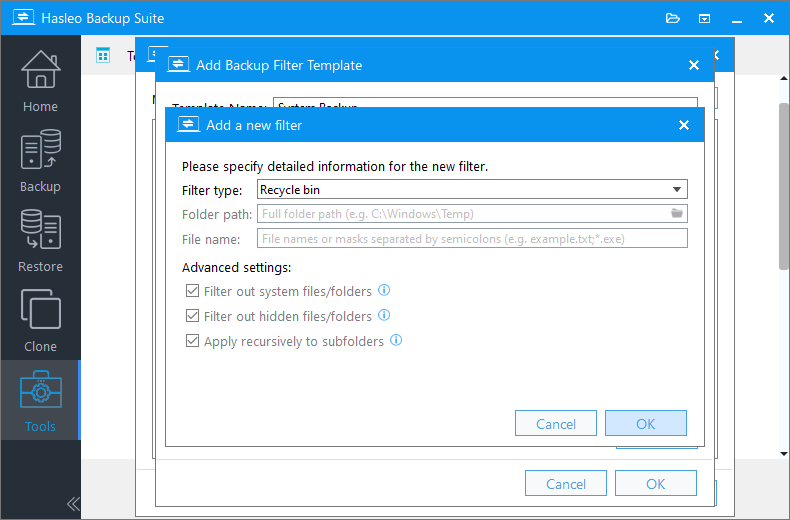
Filter out hidden files/folders: When this option is checked, even hidden files and folders will be filtered out.
Apply recursively to subfolders: When this option is checked, even deeply nested subfolders will be filtered out along with their contents.
For more information about predefined and custom backup filters, please refer to: Backup Options — Advanced Backup Settings of Hasleo Backup Suite.
Step 5. Once the configuration is complete, click OK to save the template.
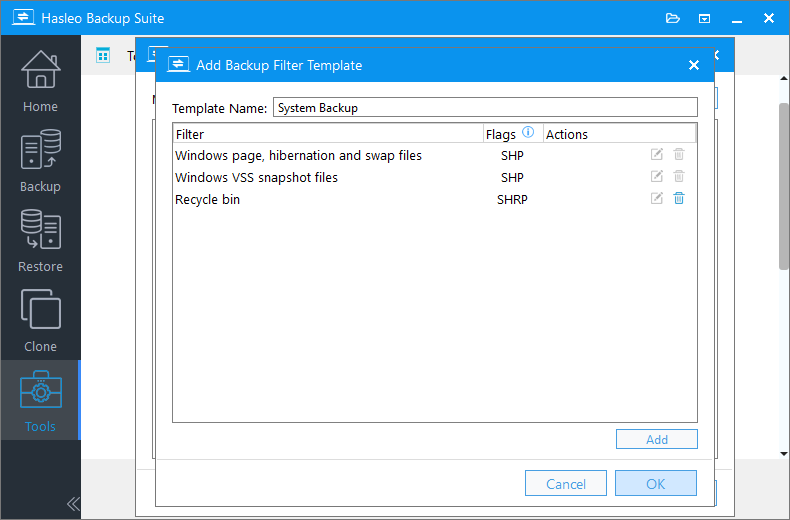
Step 6. The filter template you just created now appears in the Backup Filter Templates interface. Click Actions to view, edit, or delete the template.
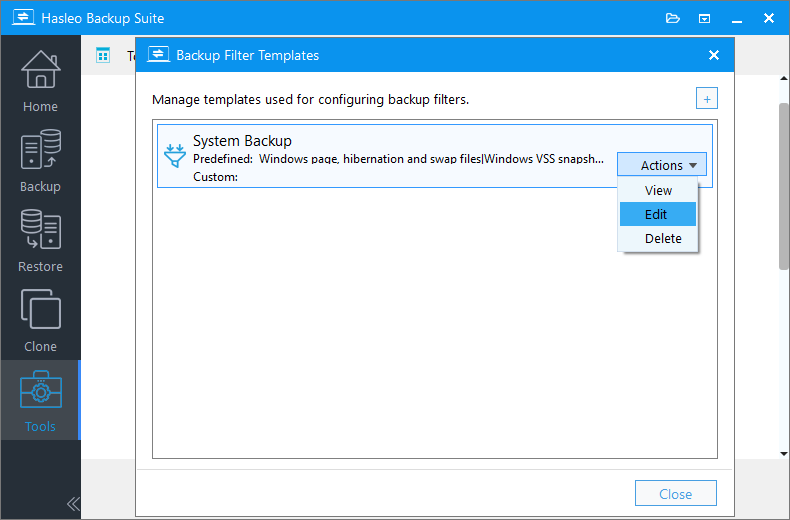
Step 7. If you need multiple backup filter templates, simply repeat the steps above.
Using Templates in Backup Tasks
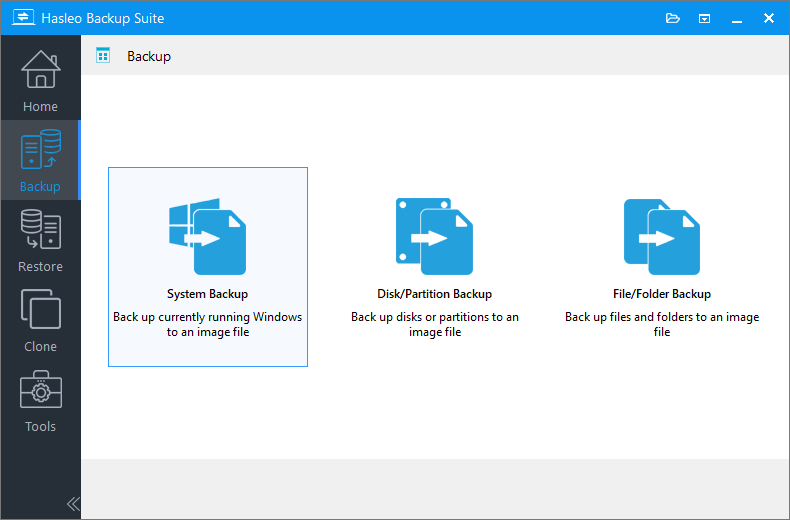
Step 1. Click Backup in the left navigation bar, then select the type of backup task you want to create in the action area.
Step 2. Select the system, disk, partition, or files/folders you want to back up. Specify the task name, description, and destination, then click Backup options.
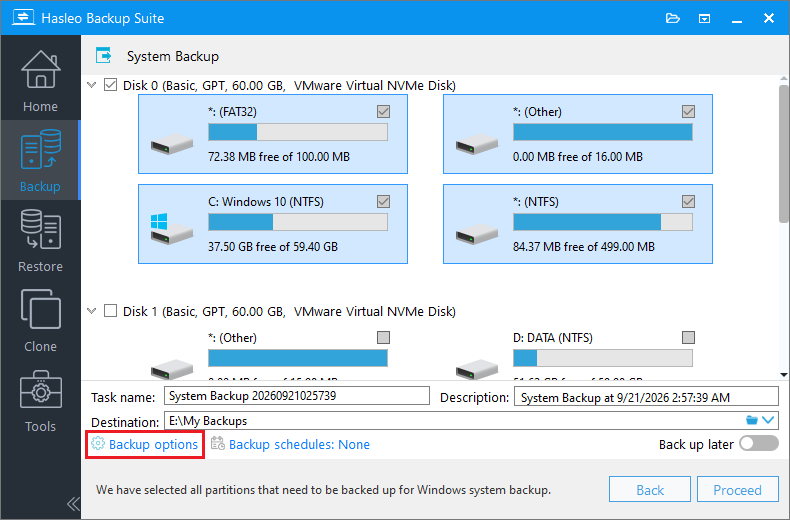
Description: Briefly describe the purpose of the task and any other relevant information.
Destination: Modify the destination path where the backup image files will be stored by clicking the folder icon.
Backup options: Advanced backup settings. For more details, please refer to Backup options.
Backup schedule: Set up backup schedules to automatically perform your backup tasks on a regular basis. For more details, please refer to Backup schedule.
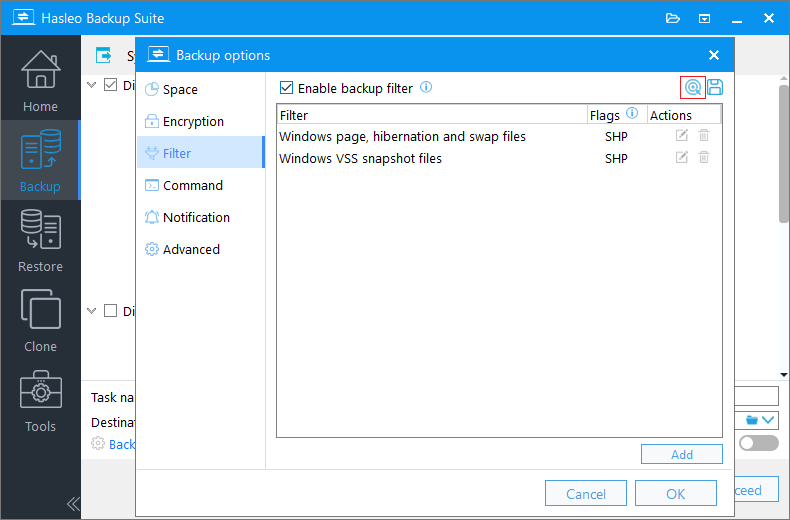
Step 3. In the pop-up window, locate and click Filter. Check the Enable backup filter box at the top of the configuration window, then click the  icon in the upper-right corner to reference a template.
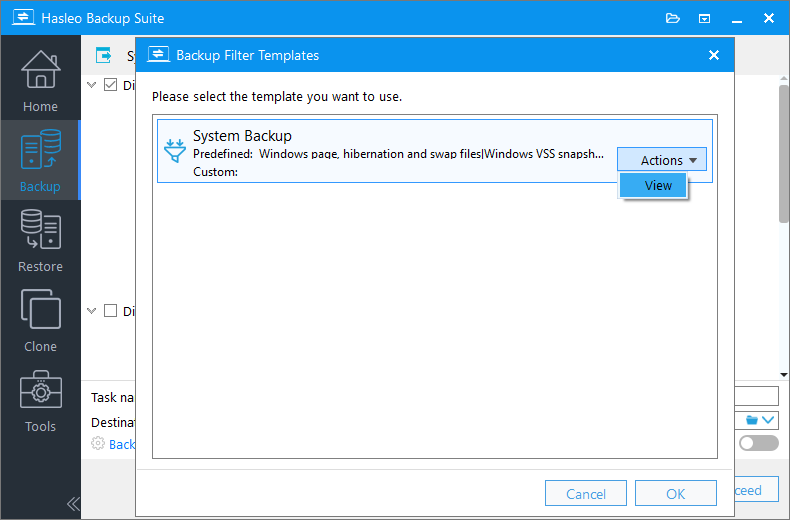
Step 4. Select the template you want to reference, then click OK. You can click Actions to preview the template's contents.
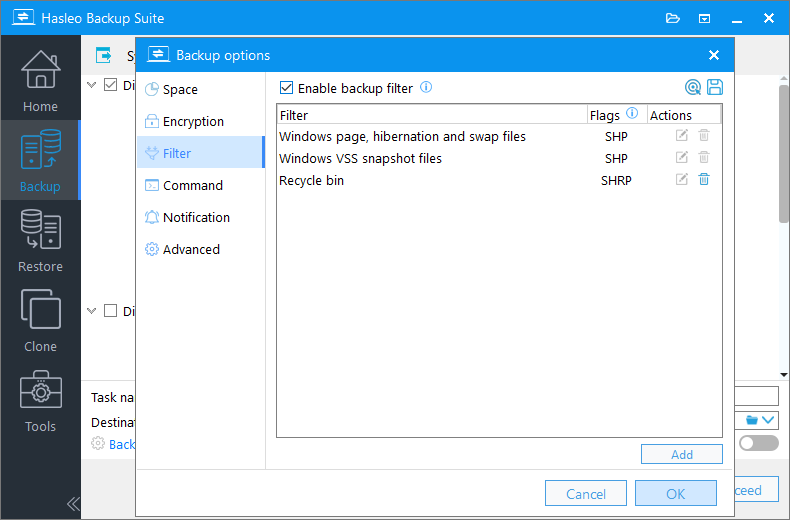
Step 5. The program will immediately and automatically populate the configured filter rules; simply click OK. You can also modify the populated rules as needed and save them as a new template.
Step 6. Click Proceed to start the backup task, then wait for the task to complete.
Frequently Asked Questions
Q: Will the template be applied to backup tasks I've already created?
A: No. The template only populates rules when you create a new task and actively select it. To use a template for an existing task, you'll need to apply it manually in that task's filter settings.
Q: Can a single template be used for system, partition, and file backups at the same time?
A: Yes. Templates store the filter rules themselves, which are independent of backup type, so you can select and apply them in the filter settings of any backup task.
Q: Can I still modify the rules after applying a template?
A: Yes. Applying a template simply populates the rules into the current task; you can continue to add, remove, or adjust them within the task. These changes will not affect the template itself. To update the template, go to Template Management under Tools and edit it there.
Conclusion
Backup Filter Templates let you save verified filter rules as templates, eliminating the need to repeatedly select and enter settings when creating new tasks. For users managing multiple backup tasks or deploying settings uniformly across multiple devices, the time saved accumulates as the number of tasks grows.
Related Articles
- From First Backup to Regular Schedule - A Beginner's Guide to Hasleo Backup Suite
- Email Notification Templates: Once Configured, Everywhere Reusable
- Image Protection: Secure Your Backups From Unauthorized Modification and Deletion
- Custom WIM Build Now Available: Tailor Your Emergency Disk to Your Hardware
- Best Free Tool to Create a Windows PE Boot Disk (WinPE)


