

- Why You Need Email Notification Templates
- What Are Email Notification Templates?
- Core Advantages
- Step-by-Step Instructions
- Frequently Asked Questions
- Conclusion
Why You Need Email Notification Templates
Before this feature was introduced, email notification settings were embedded within each individual backup task. If enabled, each task required its own set of SMTP configuration fields to be filled out separately. This led to two persistent issues:
- Repetitive work: Every time a new backup task was created, details such as the SMTP server, port, account, password, and recipients had to be re-entered.
- Prone to errors: Manual, repetitive entry can lead to misspelled addresses, mixed-up port numbers, or accidental changes to passwords containing special characters.
When you have multiple backup tasks, these issues compound:
- Three tasks → Enter the same email configuration three times.
- Five tasks → Enter it five times, with each configuration existing independently.
What Are Email Notification Templates?
Email Notification Templates is a new feature added to the Tools section of Hasleo Backup Suite. It allows users to save email notification configuration settings (SMTP server, port, sender account, password, default recipients, etc.) as reusable templates. When configuring notifications for any backup task, simply select the appropriate template, and the relevant fields will be populated automatically—no need to re-enter everything manually.
How It Works
- Create and save one or more email notification templates.
- When configuring notification settings for a backup task, select a template from the list.
- The system automatically populates all fields saved in the template.
- If necessary, manually adjust individual fields based on the pre-filled information (for example, to change the recipient for that task).
Key Advantages
Say Goodbye to Repetitive Configuration
Email settings only need to be configured once and can then be reused across unlimited backup tasks. When creating a new backup task, simply select a template to complete the notification configuration—no need to re-enter the settings.
Ensure Configuration Consistency
All tasks that reference the same template receive exactly the same email configuration when initially populated. This eliminates minor discrepancies caused by manual re-entry and reduces the number of variables during troubleshooting, making the process more manageable.
Centralized Management of Configuration Sources
Email configuration sources are centralized in templates rather than scattered across individual tasks. When configuring the same notification settings for multiple tasks, you no longer have to recall each field or copy and paste—simply populate them uniformly from the template, reducing repetitive work and the likelihood of input errors.
Flexible and Customizable
Templates provide default values. If a specific task requires different recipients, you can reference the template and then modify the settings directly within that task—without affecting the template or other tasks.
Step-by-Step Instructions 🔥
Create an Email Notification Template
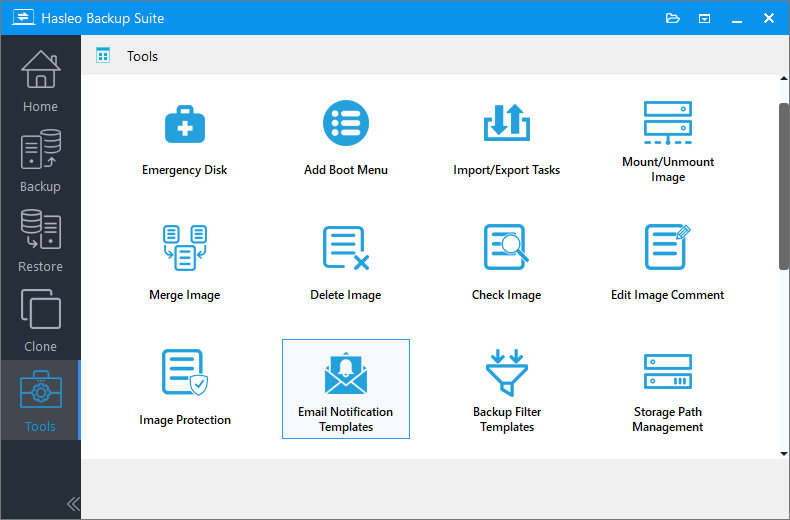
Step 1. Update Hasleo Backup Suite to the latest version and launch it. Click Tools in the left navigation bar, then select Email Notification Templates in the action area.
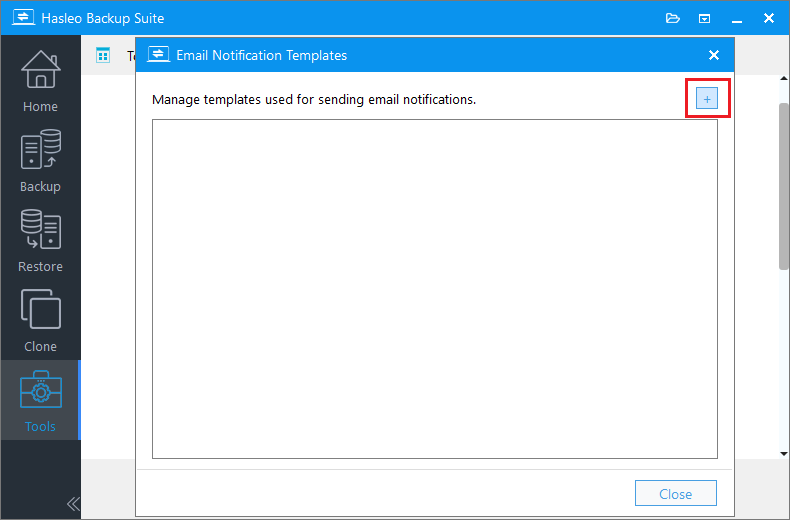
Step 2. On the page that appears, click the + sign in the upper-right corner to create an email notification template.
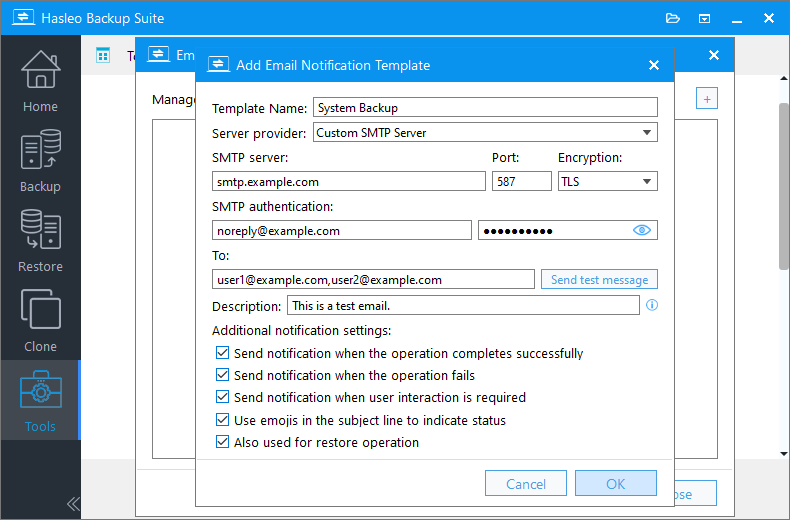
Step 3. In the configuration interface, enter the SMTP server address, port number, sender email account and password, recipient address, and other information, then click OK to save the settings.
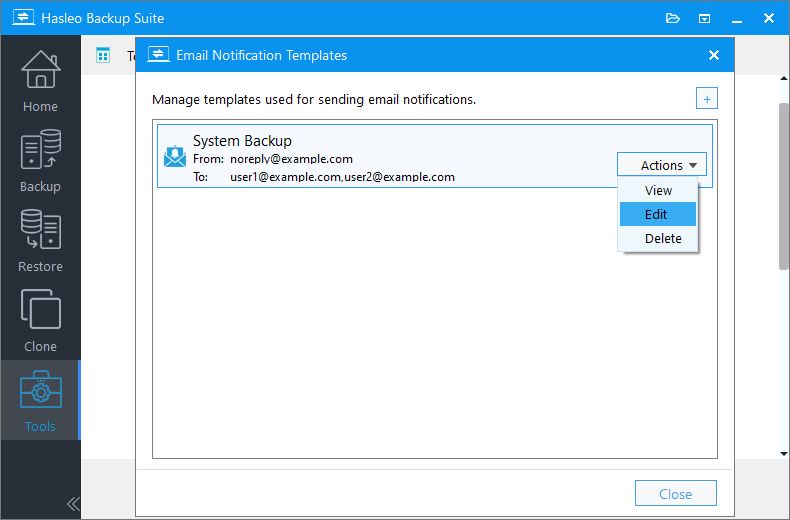
Step 4. You will now see the template you just created in the Email Notification Templates interface. Click Actions to view, edit, or delete this template.
Step 5. If you need multiple email notification templates, simply repeat the steps above.
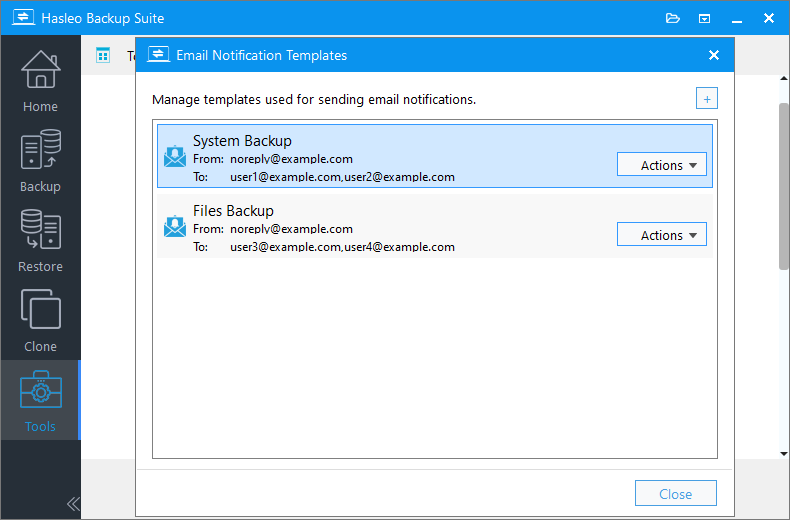
Using Templates in Backup Tasks
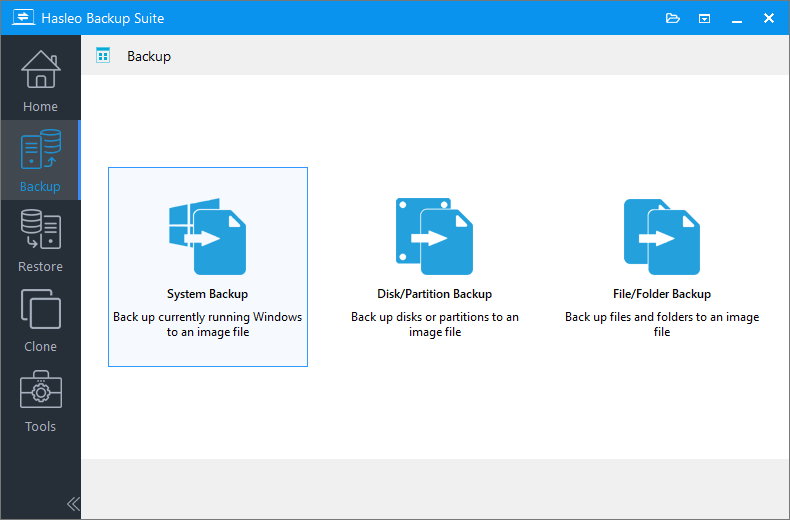
Step 1. Click Backup in the left navigation bar, then select the type of backup task you want to create in the action area.
Step 2. Select the system, disk, partition, or files/folders you want to back up. Specify the task name, description, and destination, then click Backup options.
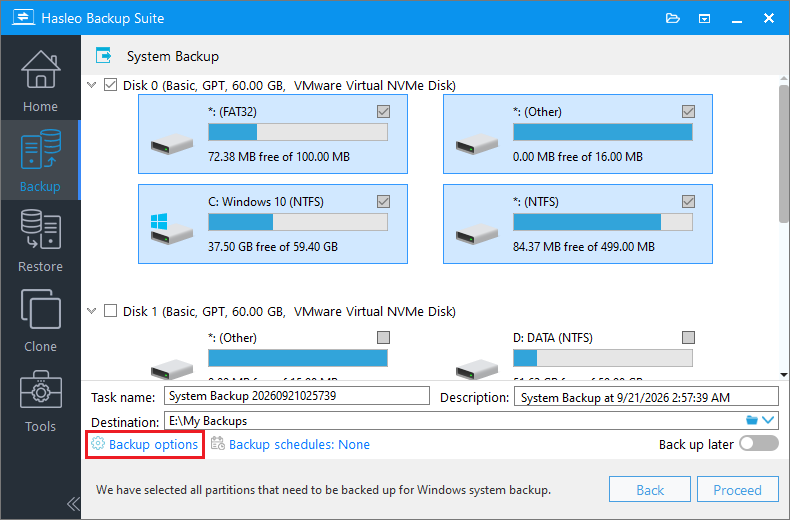
Description: Briefly describe the purpose of the task and any other relevant information.
Destination: Modify the destination path where the backup image files will be stored by clicking the folder icon.
Backup options: Advanced backup settings. For more details, please refer to Backup options.
Backup schedule: Set up backup schedules to automatically perform your backup tasks on a regular basis. For more details, please refer to Backup schedule.
Step 3. In the pop-up window, locate and click Notification.
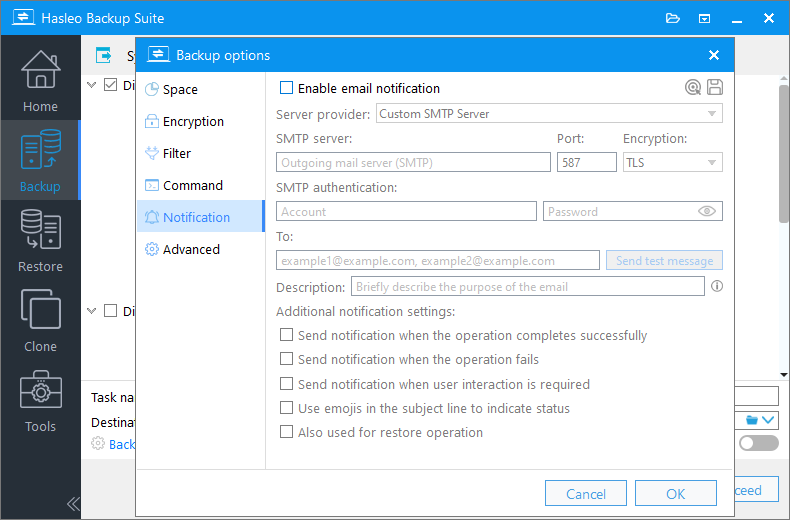
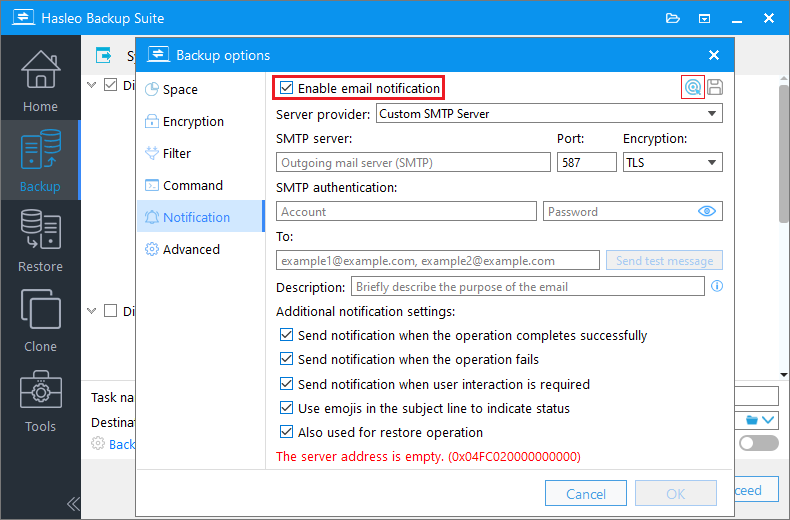
Step 4. Check the Enable email notification box at the top of the configuration window, then click the  icon in the upper-right corner to reference a template.
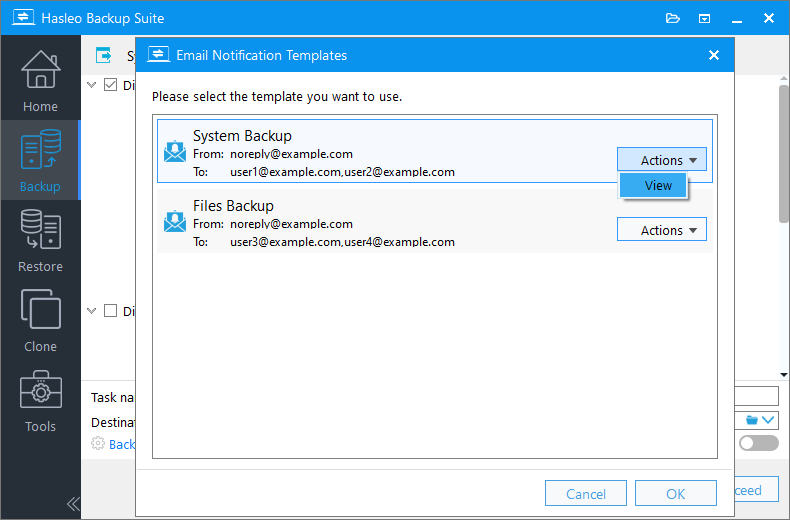
Step 5. Select the template you want to use, then click OK. You can click Actions to preview the template's contents.
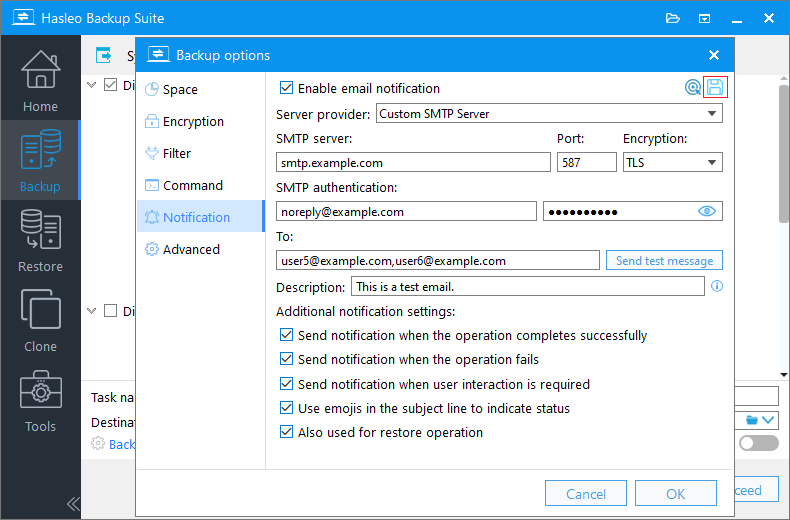
Step 6. The program will automatically populate the template with the configured information. Simply click OK. You can also modify the populated content as needed and save it as a new template.
Step 7. Click Proceed to start the backup task, then wait for the task to complete.
Frequently Asked Questions
Q: Can I customize individual fields when using a template?
A: Yes. Templates provide default values. For specific tasks needing different recipients or other fields, you can reference the template and then modify individual fields without affecting the template or other tasks.
Q: Will modifying a template affect existing tasks?
A: No. Modifying a template only changes the template itself. Email settings previously applied to existing tasks will not be updated automatically. To apply the new settings to existing tasks, you must reselect the template to populate the task or manually edit the relevant fields.
Q: Can I create multiple templates?
A: Yes. You can create multiple templates for different notification needs—such as different departments or recipient groups—and select the appropriate one as needed.
Conclusion
Email Notification Templates are a useful new feature in Hasleo Backup Suite. This feature extracts email configurations—previously scattered across individual backup tasks—and centralizes them into reusable templates. Configure your templates in advance, then simply select one when creating a new backup task—saving you time and effort. Whether for daily backups or scheduled tasks, apply them with a single click, making email notification setup easy and efficient.
In addition, more useful features—such as Emergency Disk and Image Protection—have been updated and released. We invite you to visit our official website to download and try them out!
Related Articles
- How to Use Backup Filter Templates to Reduce Repetitive Configuration
- Image Protection: Secure Your Backups From Unauthorized Modification and Deletion
- Custom WIM Emergency Disk for Your Hardware
- Backup Options - Advanced Backup Settings of Hasleo Backup Suite
- How to Create an App Password in Gmail for Sending Emails From Hasleo Backup Suite


