

- Why Backup Files Also Need Protection
- What Is Image Protection?
- How to Enable and Configure It
- Use Cases: Who Needs It Most
- Precautions
- Frequently Asked Questions
- Conclusion
Why Backup Files Also Need Protection
In the data backup process, creating backup files is often viewed as the final step. People generally assume that once a backup is complete, the data is secure. However, one fact is often overlooked: backup files themselves are also data—equally vulnerable to tampering, encryption, or deletion.
Ransomware Is Targeting Backups
Over the past few years, ransomware attack strategies have shifted noticeably. In the past, attackers would encrypt only users' production data; now, an increasing number of ransomware strains actively search for and encrypt backup files. The reason is simple: if the backups remain intact, victims can restore their data—and the attackers won't get their ransom.
Human Error Can Be Just as Devastating as Malicious Tampering
In addition to ransomware, the following situations can also render backups ineffective:
- Users accidentally deleting or overwriting backup images
- Other programs inadvertently writing to the backup directory
- Targeted sabotage by insiders or malware
- File system anomalies caused by system failures
Backup Protection Is an Overlooked Aspect
Most backup software is limited to creating and verifying backups. While it can tell you whether a backup is complete, it cannot prevent that backup from being modified. The new Image Protection feature in Hasleo Backup Suite is designed to fill this gap.
What Is Image Protection? ✨
Image Protection is a new paid security feature added to the Tools section in the latest version of Hasleo Backup Suite. It is designed to prevent unauthorized modification or deletion of backup image files on local drives. Once enabled, it continuously monitors and blocks unauthorized attempts to write to or delete backup images. Whether it is mass encryption by ransomware or accidental actions by other programs, your backup files cannot be easily tampered with.
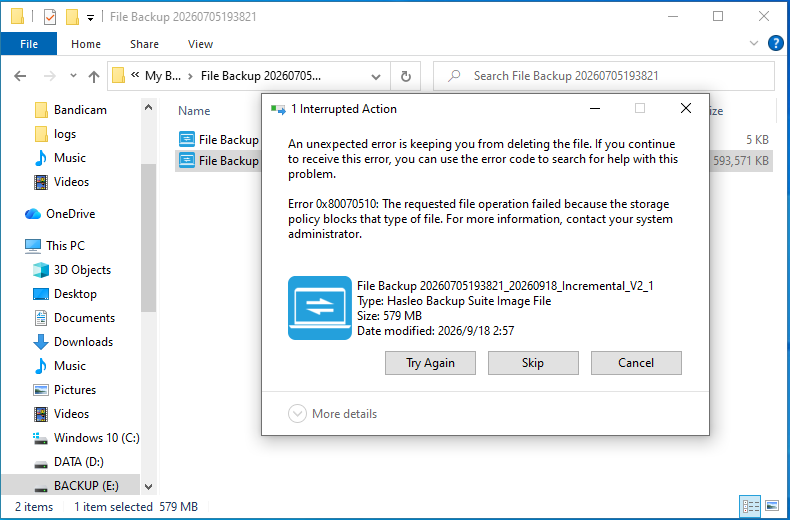
Previously, Hasleo Backup Suite offered image encryption with AES 128/256-bit capabilities. Backup encryption protects against "content being read," while Image Protection ensures that "files remain untouched"—that is, it prevents unauthorized modifications or deletions. The two features complement each other, together forming a comprehensive backup security system.
Detailed Explanation of Core Features
Preventing Unauthorized Modifications
Image Protection blocks any unauthorized process from writing to backup images. This means:
- Ransomware cannot encrypt your backup files.
- Other programs cannot accidentally overwrite image contents.
- Malware cannot tamper with backup data.
Preventing Unauthorized Deletion
Beyond modifications, deletion is also a critical threat to backups. Image Protection intercepts unauthorized deletion requests, ensuring that backup files are not silently erased.
Runs Transparently Without Affecting Normal Use
The protection mechanism runs in the background and does not interfere with Hasleo Backup Suite's own backup, restore, and verification operations. Your normal experience within the software remains unaffected.
Centralized Management via the Tools
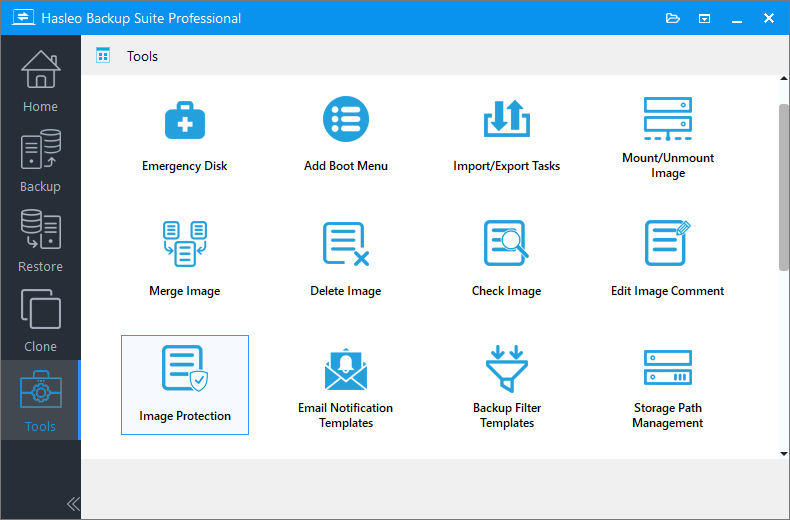
The feature is accessible from the Tools menu, alongside other tools such as Check Image and Emergency Disk, allowing for centralized management and quick activation.
How to Enable and Configure It 🔥
Step-by-Step Instructions
Step 1. Download, install and launch the latest version of Hasleo Backup Suite Home, Professional, Server or Enterprise edition. Click Tools in the left navigation pane, and then select Image Protection in the task pane.
Step 2. On the page that appears, first click Enable in the upper-right corner to turn on Image Protection. Then, select the drives you want to protect as needed and click the corresponding Enable button. When the description changes to Image protection is enabled, the feature has been successfully enabled.
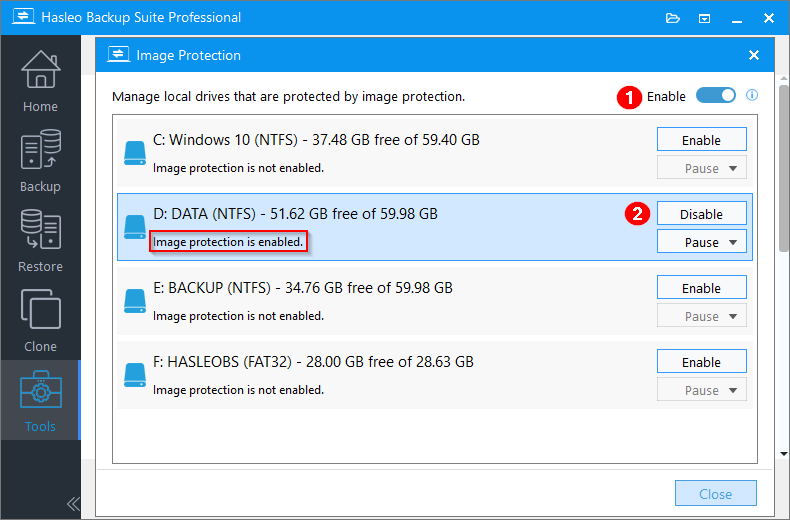
Step 3. Once the configuration is complete, click Close to exit.
Recommended Configuration
- Enable protection for all drives containing important backups.
- If backups are spread across multiple locations, verify the protection scope for each one individually.
Status Verification
- After enabling protection, you can check the current protection status in the Tools to see which drives are protected.
- We recommend running a backup and trying to access the image file to confirm that protection is working.
Best Practices
Image Protection is not a standalone feature; it complements the other security capabilities of Hasleo Backup Suite.
Working with Image Encryption
Hasleo Backup Suite supports AES 128-bit and 256-bit image encryption, ensuring that even if backup files are stolen, their contents cannot be read. Image Protection adds another layer: it ensures the files themselves cannot be modified or deleted. We recommend enabling both image encryption and image protection for important backups.
Integration with Check Image
Check Image verifies the integrity of backup images and detects file corruption—a post-event verification process. Image Protection, on the other hand, provides preemptive protection. Together, they form a complete "prevention + detection" closed loop.
Combine with Offline Backup Practices
Disconnecting the external drive after the backup is complete ensures the backup is fully protected from online threats. Image Protection is an important supplement to—but not a replacement for—keeping backups offline.
Use Cases: Who Needs It Most
Users Who Store Backups on Internal Drives
This is the highest-risk scenario. Internal drives are always online, making backup files easily accessible to ransomware and other malware. Image Protection offers the greatest value here.
Users Who Keep External Drives Connected Long-Term
Many people habitually leave external backup drives plugged into their computers at all times. While convenient, this also exposes those drives to the same risks. Image Protection provides an additional layer of defense in this setup.
Computers Shared by Multiple Users or With Complex Permission Structures
In environments where multiple users share a computer, the likelihood of accidental deletion or mishandling increases significantly. The protection mechanism prevents unauthorized users from modifying or deleting backup files.
Enterprise Users with High Data Security Requirements
For enterprises that need to meet compliance requirements or address advanced threats, Image Protection is an indispensable component of their backup security strategy.
Precautions 🎯
Every security feature has its limitations. Understanding these limitations is essential for setting reasonable expectations.
Protection is effective only on Windows systems where Hasleo Backup Suite is installed
Image Protection relies on the runtime environment provided by Hasleo Backup Suite. If the backup drive is connected to another computer that does not have this software installed, protection will not be enabled.
Protection fails in cross-platform scenarios
When the backup drive is connected to Linux or other non-Windows systems, the protection mechanism will not function.
An attacker with administrator privileges could theoretically bypass protection
An attacker with system administrator privileges can stop or uninstall the relevant components, thereby disabling protection. This is a common limitation of driver-level protection solutions and is not unique to Hasleo.
Cannot replace encryption or offline backups
Image Protection is one component of a backup security system, not the entire system. It cannot replace encryption or physical isolation.
Frequently Asked Questions
Q: Why do backup files also need protection?
A: Backup files are data themselves and face risks of tampering, encryption, or deletion. Ransomware now actively targets backup files. If backups remain intact, victims can restore their data without paying ransom. Misoperations and malicious tampering can also render backups useless.
Q: Does enabling Image Protection affect normal backup and restore operations?
A: No. The protection mechanism blocks only unauthorized operations. Hasleo Backup Suite's own backup, restore, and verification processes remain unaffected.
Q: How does this differ from backup encryption?
A: Encryption prevents content from being read, while Image Protection prevents files from being modified or deleted. They serve different purposes, so we recommend using them together.
Q: If I move the backup drive to another computer, will the protection still be in effect?
A: No. Protection depends on the system environment where Hasleo Backup Suite is installed.
Conclusion
Backups are the last line of defense for data security—but that line of defense itself needs protection. Image Protection prevents unauthorized programs from modifying or deleting backup images. Together with image encryption, image verification, and offline backups, it forms a comprehensive protection system.
f your backups are stored on an internal drive or a permanently connected external drive, we recommend updating to the latest version of Hasleo Backup Suite immediately and enabling Image Protection in the Tools. This simple step could make all the difference in whether you can successfully recover your data at a critical moment.
Related Articles
- From First Backup to Regular Schedule - A Beginner's Guide to Hasleo Backup Suite
- Custom WIM Emergency Disk for Your Hardware
- What Is the 3-2-1 Backup Rule? A Complete Guide with Examples
- How to Use the Image Retention Policy to Efficiently Manage Storage Space?
- How to Mount, Unmount, and Recover Files from Backup Images Using Hasleo Backup Suite


