

- What causes the error "The service program did not start properly"?
- Tutorial to Fix the "Service Program Did Not Start Properly" error
- Frequently Asked Questions
- Conclusion
This tutorial describes how to fix "The service program did not start properly, please contact us for support." error that occurs when you start Hasleo Backup Suite.
What causes the error "The service program did not start properly"?
The Hasleo Backup Suite service program (BackupService.exe) is a background component that receives, processes, and returns commands to the main GUI (BackupMainUI.exe). If this service fails to start, you will get the error: "The service program did not start properly, please contact us for support."
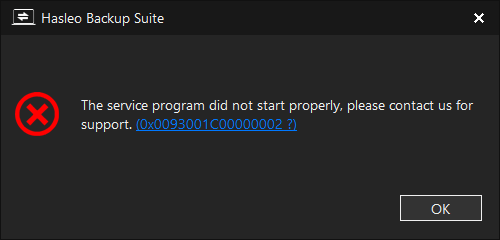
This issue may occur if the service has crashed, been removed, disabled, or set to manual start. Common causes include system optimization tools disabling the service or your antivirus software blocking it from running.
Tutorial to Fix the "Service Program Did Not Start Properly" error
Step 1. Press the Windows + R keys to open the Windows Run dialog.
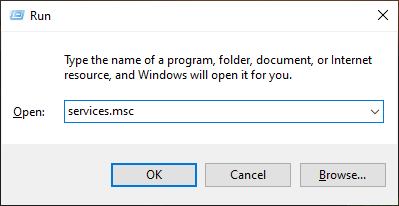
Step 2. Enter services.msc and press Enter or click OK.
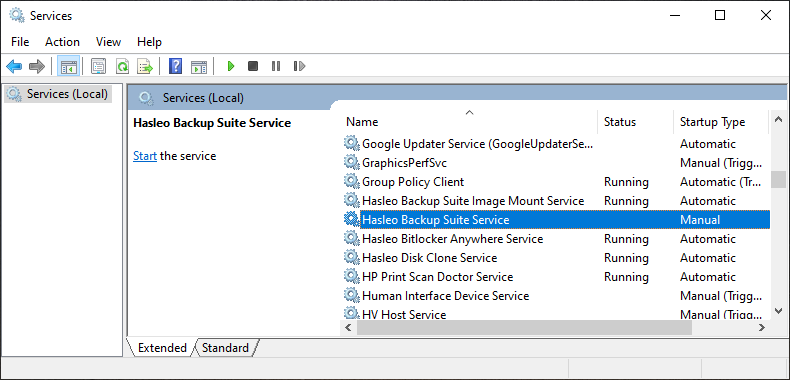
Step 3. Double-click Hasleo Backup Suite Service program.
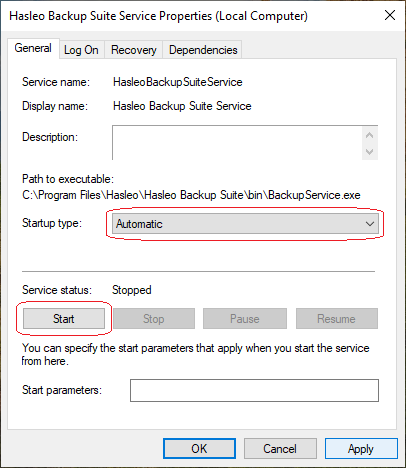
Step 4. Set the service program to start automatically, then start the service program, and close the window.
* Tips:
- If the program still does not work correctly after restarting the service program, please contact us for further assistance.
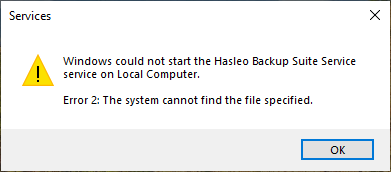
- If Windows prompts that the service program's file cannot be found, it usually means that "BackupService.exe" was removed abnormally. To resolve this, a reinstallation of Hasleo Backup Suite is required.
Frequently Asked Questions
A: The service program (BackupService.exe) is a background component that receives and processes commands from the main GUI. Without it running, Hasleo Backup Suite cannot function properly.
A: Common causes include system optimization tools disabling the service, antivirus software blocking it, or the service being set to manual startup.
A: Open Services (services.msc), find Hasleo Backup Suite Service, double-click it, set Startup type to Automatic, then click Start to start the service.
A: This means BackupService.exe was removed. You need to reinstall Hasleo Backup Suite to restore the missing files.
A: Yes, some antivirus programs may block the service. Add an exception for Hasleo Backup Suite in your antivirus settings.
A: Not necessarily. After starting the service in Services, you can try launching Hasleo Backup Suite again immediately.
A: Try reinstalling Hasleo Backup Suite. If the problem persists, contact technical support for further assistance.
A: Add Hasleo Backup Suite to your antivirus whitelist and avoid using aggressive system optimization tools that disable services.
Conclusion
This tutorial describes how to fix the "The service program did not start properly, please contact us for support." error when starting Hasleo Backup Suite.


