

- Understanding Windows Updates and Their Importance
- Common Causes of Windows Update Failures
- Preparation: Create a System Backup Using Hasleo Backup Suite
- Solution 1: Run the Windows Update Troubleshooter
- Solution 2: Reset Windows Update Components
- Solution 3: Clean the Windows Update Cache
- Solution 4: Run System File Checker (SFC)
- Solution 5: Use DISM to Repair the System Image
- Solution 6: Check Available Disk Space
- Solution 7: Verify Your Network Connection
- Solution 8: Perform a Windows System Reset
- Frequently Asked Questions
- Summary
Windows updates are an essential way to keep your system secure, stable, and to access new features. However, during the update process, many users may encounter various errors that prevent updates from completing or installing successfully. Windows update failures are common and can stem from various causes, including corrupted system files, update component errors, network issues, or insufficient disk space. When you encounter Windows update failures, don't worry too much. This tutorial will provide detailed information about various practical fixes to help you easily resolve Windows update issues and restore your system to normal.
⚠️Important Reminder: Before performing any system repair operations, we strongly recommend backing up your important data or creating a complete system backup using tools like Hasleo Backup Suite or Windows built-in backup features. This way, even if problems occur during the repair process, you can easily restore your system.
👍Understanding Windows Updates and Their Importance
Windows Update is an important service provided by Microsoft to users. It not only fixes system security vulnerabilities but also introduces new features, improves performance, and resolves known issues. Understanding the importance of Windows updates helps you better maintain system security and stability.
Security Updates
The most important function of Windows updates is to fix known security vulnerabilities. As cyberattack technologies continue to evolve, new security threats constantly emerge. Microsoft regularly releases security updates to fix these vulnerabilities and prevent malware and hacker attacks. Ignoring security updates may expose your system to risks.
Feature Updates
Feature updates are typically released once or twice a year (such as annual Windows 11 updates) to add new features to the system and optimize existing designs. For example, updates may improve the Start menu, enhance multitasking capabilities, or introduce new desktop personalization options, making your experience richer and more efficient.
Quality Updates
Quality updates primarily focus on optimizing system stability and performance, fixing errors and known issues reported by users. These updates are usually smaller in size but can effectively reduce system crashes or freezes, ensuring smoother computer operation.
Driver Updates
Windows Update also delivers the latest versions of hardware drivers, helping your devices (such as graphics cards, sound cards, printers, etc.) maintain good compatibility with the system and perform at their best. You can view and choose whether to install these drivers in "Optional Updates" to avoid potential compatibility issues.
⚠️Important Note: While Windows updates are essential for system health, it is highly recommended that you create a system backup before performing any major updates or system repair operations. This way, if unexpected issues occur after the update (such as software conflicts or driver incompatibilities), you can quickly restore your system to a normal state, avoiding data loss or work interruptions.
Common Causes of Windows Update Failures
Understanding the common causes of Windows update failures can help you quickly identify and resolve issues. Here are the most common causes of Windows update failures:
- Network Issues: Unstable network connections or incorrect proxy settings may cause update file downloads to fail.
- Insufficient Disk Space: Insufficient space on the system drive can prevent updates from installing. It is recommended to maintain at least 8GB of available space.
- Corrupted Update Components: Damage to Windows update-related services or components may cause update failures.
- Corrupted System Files: Corruption or loss of critical system files can affect the update process.
- Third-Party Software Conflicts: Certain security software or optimization tools may interfere with the update process.
- Driver Issues: Outdated or incompatible drivers may cause update failures.
- Background Process Interference: Some background processes may occupy system resources required for updates.
When Windows updates fail, the system typically displays an error code. Here are common Windows update error codes. Understanding these error codes can help you quickly identify the problem:
- 0x80070005: Access Denied Error. Usually caused by insufficient privileges (running without administrator account), security software (antivirus/firewall) interference, or User Account Control (UAC) settings being too high. Solution: Run Windows Update as administrator; temporarily disable third-party security software; check if UAC settings are normal.
- 0x80073712: Component Store Corruption. Indicates that the component store repository files required for Windows updates are corrupted or missing. Solution: Run System File Checker (SFC) and DISM tool to repair the component store.
- 0x80244019: Download Timeout or Connection Failure Error. Indicates unstable network connection, firewall blocking update services, or WSUS (Windows Server Update Services) server unreachable in enterprise environments. Solution: Check network connection; temporarily disable firewall; reset network settings.
- 0x80070490: Element Not Found or Missing Component Error. Indicates that system components or registry entries required for updates cannot be found, commonly seen in system version upgrade failures or corrupted update manifest files. Solution: Run Windows Update Troubleshooter; reset Windows Update components; use DISM tool to repair system image.
- 0x8007000D: Invalid Data or File Corruption Error. Usually indicates disk read errors, corrupted file system, or incomplete downloaded update packages. Solution: Run disk check tool; delete temporary update files and retry.
- 0x8024402C: Proxy or WSUS Configuration Error. Indicates that the system is configured with an invalid proxy server, or WSUS server settings are incorrect in enterprise environments. Solution: Check and reset proxy settings; if on an internal network, contact administrator to confirm WSUS configuration.
- 0x80080005: COM Object Initialization Failure Error. The Component Object Model (COM) cannot start, usually related to Windows update-related services (such as BITS - Background Intelligent Transfer Service) not running or corrupted. Solution: Restart the computer, or reset Windows Update components.
- 0x80246017: Download Blocked Error. Usually caused by restricted networks (such as metered networks), firewall rules blocking update downloads, or Background Intelligent Transfer Service (BITS) failures. Solution: Ensure network is set to "Non-metered connection"; check if firewall allows Windows updates; restart BITS service.
💡Tips: If the error code you see is not in the list above, you can search for that error code on the Microsoft official support website to get more help information.
⭐Preparation: Create a System Backup Using Hasleo Backup Suite
Before performing any system repair operations, always create a full system backup. With Hasleo Backup Suite, you can easily back up your entire system and restore it instantly if anything goes wrong.
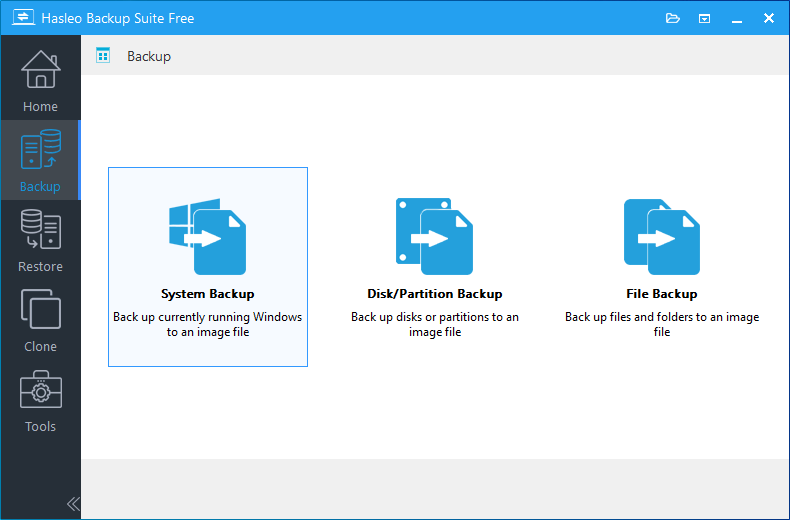
Step 1. Download, install and run Hasleo Backup Suite. Click the "Backup" button in the navigation bar, then select "System Backup" in the operation area.
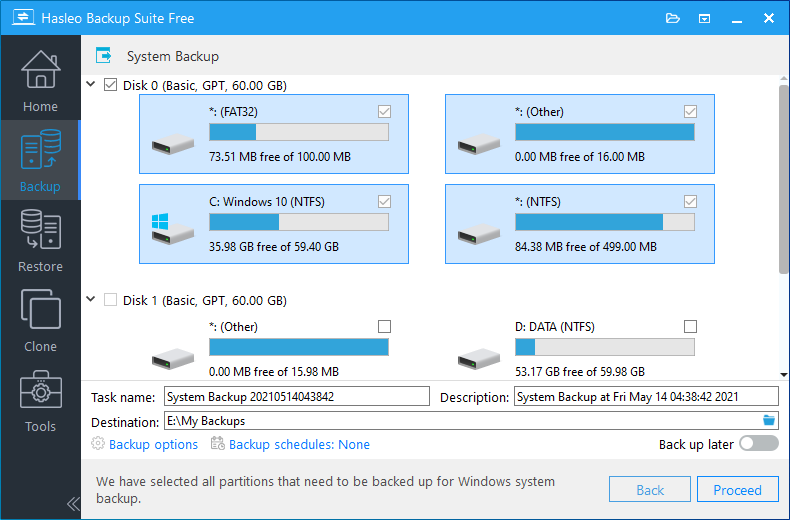
Step 2. Hasleo Backup Suite will automatically select all partitions required for Windows system backup. Customize the task name, description, destination, and backup options as needed. It is recommended to store the backup on an external storage device or on a disk other than the system drive. Then click "Continue".
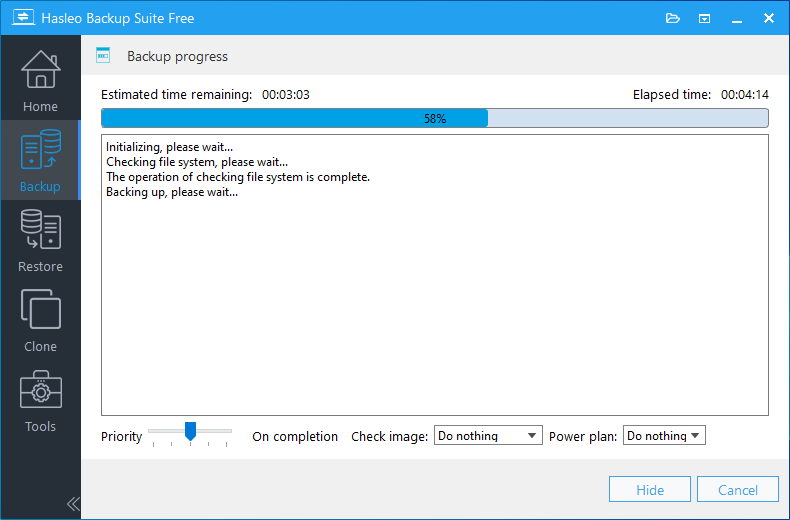
Step 3. Hasleo Backup Suite will start the backup process. This may take some time, please wait patiently for the backup to complete. After the backup is complete, you will have a complete system backup image. If subsequent update repair operations cause system problems, you can use this backup image to quickly restore the system.
💡Tips:
- It is recommended to save the backup image to an external hard drive or network location so that you can access recovery media even if the system cannot boot at all.
- In addition to creating a system backup, it is also recommended that you create a WinPE bootable media so you can perform recovery even if the system cannot boot. You can use the "Emergency Disk" feature in Hasleo Backup Suite to create WinPE bootable media.
Solution 1: Run the Windows Update Troubleshooter
Windows system has a built-in Update Troubleshooter tool that can automatically detect and fix common issues causing update failures (such as services not running, file corruption, or configuration errors).
Step 1. Press "Win + I" to open Windows Settings, and navigate to the corresponding path based on your system version:
- Windows 11: Click System > Troubleshoot > Other troubleshooters.
- Windows 10: Click Update and Security > Troubleshoot > Other troubleshooters.
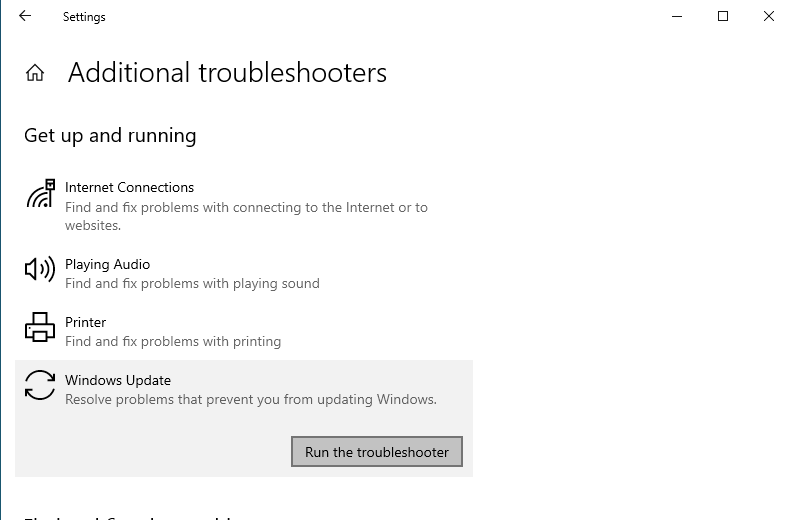
Step 2. Find "Windows Update" in the list and click the "Run the troubleshooter" button next to it.
Step 3. Wait for the tool to complete the detection and follow the on-screen prompts to apply the fixes.
Step 4. After the repair is complete, restart the computer and try checking for updates again.
Solution 2: Reset Windows Update Components
If update components are corrupted, resetting them can resolve most update issues. This requires running Command Prompt or Windows PowerShell with administrator privileges.
Step 1. Right-click the "Start" menu and select "Windows Terminal (Admin)" or "Command Prompt (Admin)".
Step 2. Execute the following commands in sequence, pressing "Enter" after each command:
             net stop wuauserv
             net stop bits
             net stop cryptsvc
             net stop msiserver

             ren C:\Windows\SoftwareDistribution SoftwareDistribution.old
             ren C:\Windows\System32\catroot2 catroot2.old

             net start wuauserv
             net start bits
             net start cryptsvc
             net start msiserver
Step 3. After the commands are executed, close the command prompt window, restart the computer, and try checking for updates again.
💡Tips: The above commands will reset Windows Update components, including clearing downloaded update files. If you have previously downloaded updates, you may need to download them again.
Solution 3: Clean the Windows Update Cache
Sometimes, temporary files downloaded by Windows Update may be corrupted or conflicting, causing update failures. By cleaning these cache files, you can force the system to re-download updates, thus resolving the problem.
Step 1. Press "Win + R", type "services.msc" and press "Enter".
Step 2. Find the Windows Update service in the list, right-click and select "Stop". Similarly, find Background Intelligent Transfer Service (BITS) and also "Stop" it. (Keep the services window open)
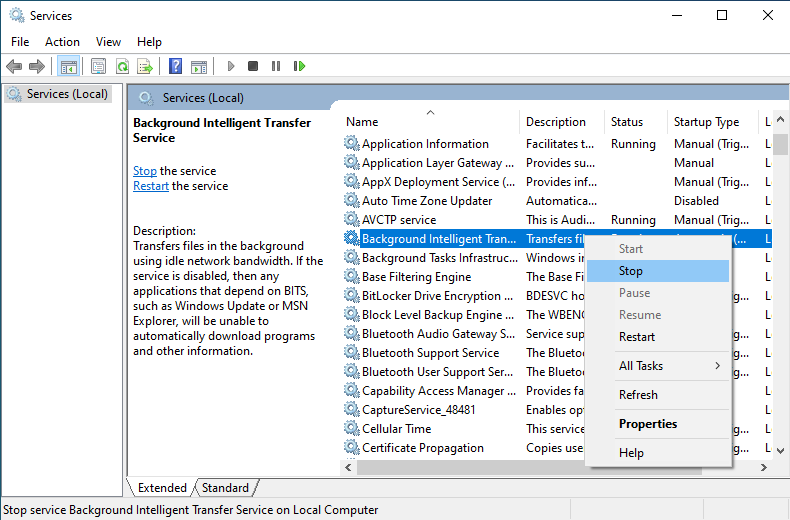
Step 3. Open "This PC", navigate to C:\Windows\SoftwareDistribution\Download, and delete all contents in this folder.
💡Tips: If the system prompts for administrator permissions, click "Continue" to confirm.
Step 4. Return to the services list, right-click the Windows Update and BITS services you stopped earlier and select "Start" (or just restart the computer and they will start automatically).
Step 5. Empty the Recycle Bin and try checking for updates again.
💡Tip: You can also use the Disk Cleanup tool to clean update cache. Right-click the system drive (C:), select "Properties", then click "Disk Cleanup", and check the "Windows Update Cleanup" option.
Solution 4: Run System File Checker (SFC)
System File Checker (SFC) is a built-in Windows tool that can scan and repair corrupted or missing system files, which are often the root cause of Windows update failures.
Step 1. Press "Win + X" and select "Windows Terminal (Admin)" or "Command Prompt (Admin)" from the pop-up menu.
💡Tips: If User Account Control prompt appears, click "Yes" to allow running.
Step 2. In the opened window, type the following command and press Enter:
sfc /scannow
Step 3. The system will begin verifying all protected system files. Please wait patiently for the progress bar to complete, do not close the window. This process usually takes more than 15 minutes, please be patient.
Step 4. After the scan is complete, take action based on the results. If problems are found and repaired, restart the computer and try checking for updates again.
- If the screen displays "Windows Resource Protection found corrupted files and successfully repaired them", please restart the computer and try checking for Windows updates again.
- If it displays "Windows Resource Protection did not find any integrity violations", the problem may not be with system files. Please try other solutions.
- If it displays "Windows Resource Protection found corrupted files but was unable to repair some of them", please continue to the tips below.
💡Tip: If SFC cannot repair all problems, it usually means the system image (the underlying image of Windows) itself is corrupted. Please immediately try the DISM command in the next solution to repair the system image, then run the sfc /scannow command again.
Solution 5: Use DISM to Repair the System Image
If system file corruption is severe, simply running SFC (System File Checker) may not completely resolve the issue. At this time, you can use the more powerful DISM (Deployment Imaging Service and Management) tool to repair the Windows system image.
Step 1. Press "Win + X" and select "Windows Terminal (Admin)" or "Command Prompt (Admin)" from the pop-up menu. If User Account Control prompt appears, click "Yes".
Step 2. In the terminal window, type the following command and press Enter:
DISM /Online /Cleanup-Image /RestoreHealth
Step 3. The system will begin scanning for corruption in the component store and automatically download required files from Windows Update servers to repair. This process usually takes 10-20 minutes or even longer. Please keep a stable network connection and wait patiently.
Step 4. After the DISM command executes successfully (displaying "The restore operation completed successfully"), it is recommended to immediately run the command: sfc /scannow in the same command window to ensure the final verification of all system file integrity.
Step 5. After all commands are executed, restart the computer, then go to "Settings" > "Windows Update" again to try checking and installing updates.
💡Tips: The DISM command requires a good network connection because it needs to download correct system files from Windows Update servers to repair corrupted components.
Solution 6: Check Available Disk Space
Insufficient disk space is one of the common causes of Windows update failures. In addition to temporary files, large updates themselves require enough space to decompress and back up.
Step 1. Open "This PC", right-click the system drive (usually C: drive), and select "Properties".
Step 2. In the "General" tab, click "Disk Cleanup".
Step 3. Click "Clean up system files" at the bottom left and wait for the scan to complete.
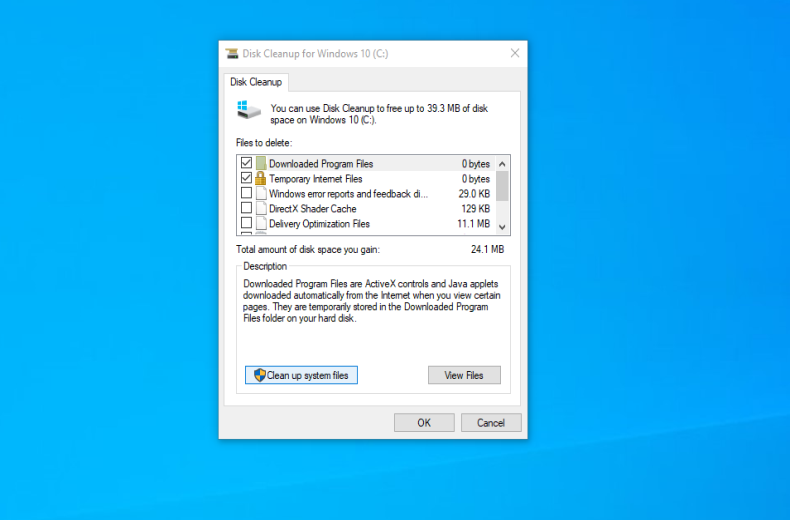
Step 4. Then check the types of files to delete in the list. It is recommended to check:
- ✅Windows Update Cleanup
- ✅Temporary Files
- ✅Recycle Bin
- ✅Delivery Optimization Files
- ✅Download Optimization Files
Step 5. Click "OK", then click "Delete Files" to start the cleanup.
Step 6. After the cleanup is complete, it is recommended to ensure the system drive has at least 20GB-30GB of available space to meet the installation needs of large Windows feature updates.
💡Tips:
- You can also open Settings > System > Storage, turn on "Storage Sense" or view "Temporary Files" and "Other users" to free up more space.
- If C: drive space is still tight, you can check the "Downloads" folder and "Desktop" and move personal files to other drives, which can usually free up a lot of available space.
Solution 7: Verify Your Network Connection
Network issues may prevent update files from downloading, causing update failures.
Step 1. Make sure your computer is connected to the Internet.
Step 2. Open a browser and visit several different websites to confirm the network connection is normal and pages can load properly.
Step 3. If using a proxy server, check the proxy configuration in Windows settings:
Step 4. Press "Win + I", click "Network & Internet", then click "Proxy", and check if proxy settings are correct.
- If not using a proxy, make sure "Use a proxy server" is turned off.
- If using automatic configuration script, confirm the script address is correct.
Step 5. (optional) Reset network settings. Open Command Prompt as administrator and execute the following commands in sequence:
             netsh winsock reset
             netsh int ip reset
             ipconfig /flushdns
             ipconfig /release
             ipconfig /renew
⚠️Tips: Executing ipconfig /release will temporarily disconnect the network. Please save your work in advance.
Step 6. Restart the computer and try checking for updates again.
Step 7. If the above steps don't work, check if firewall or security software is blocking Windows updates. You can try temporarily disabling them for testing.
Solution 8: Perform a Windows System Reset
If other methods cannot solve the problem, resetting Windows system can be the final solution. This will reinstall Windows while allowing you to keep your personal files.
Step 1. Press "Win + I" to open Windows Settings.
- Windows 11: Click "Windows Update" on the left > "Advanced options" > "Recovery".
- Windows 10: Click "Update and Security" > "Recovery".
Step 2. Click "Reset PC" in the "Reset this PC" section.
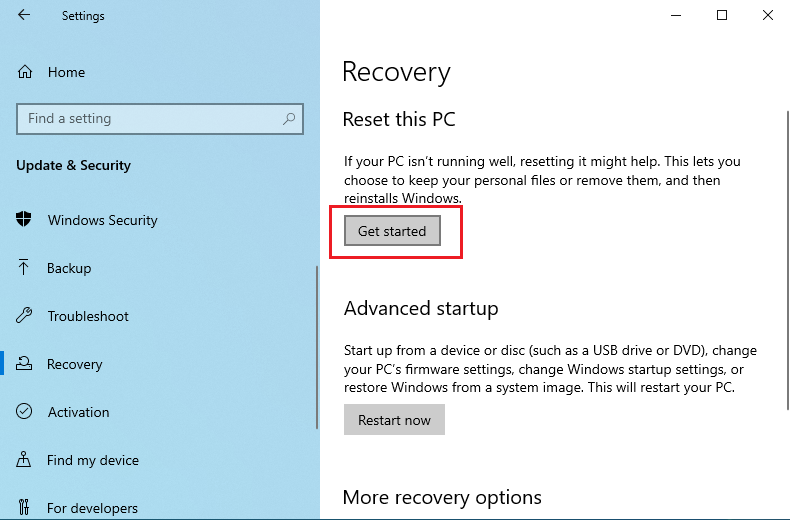
Step 3. Select "Keep my files" option. The system will keep your personal files (such as documents, photos, etc.) but will remove all installed applications and drivers.
Step 4. Next, the system will ask how you want to reinstall Windows:
- Cloud download: Recommended. Downloads the latest system files from Microsoft servers for more thorough repair. Requires Internet connection (4-8GB of data).
- Local reinstall: Uses existing system files. Suitable for poor network conditions, but may fail if system files are already corrupted.
Step 5. Follow the on-screen prompts to complete the reset process. The computer will restart several times during this process. Please wait patiently.
Step 6. After the reset is complete, go to "Windows Update" again to check and install updates.
⚠️Tips: Before resetting the system, please ensure:
- You have backed up all important personal files
- You have your Windows product key ready (if needed)
Frequently Asked Questions
A: Common causes include corrupted update components, insufficient disk space, network issues, system file corruption, or third-party software conflicts.
A: Microsoft recommends at least 8GB of free space on your system drive. More space may be needed for major feature updates.
A: Error 0x80070005 is an Access Denied error. It's usually caused by insufficient privileges or security software blocking the update.
A: Yes, some antivirus or firewall software may interfere with Windows Update. Try temporarily disabling them before updating.
A: No, resetting Windows Update components only clears the update cache and resets services. Your personal files remain safe.
A: After resetting components, Windows will re-download updates. The time depends on your network speed and update size.
A: Try running DISM tool with /RestoreHealth option. If that fails too, you may need to perform a system reset or clean install.
A: If updates continue to fail after fixing, consider pausing briefly while you investigate. However, keeping updates paused long-term is not recommended for security.
Summary
Windows update failure is a common issue, but through the various solutions above, it can be successfully resolved in most cases. Before performing any major operations, it is recommended to use a reliable backup tool (such as Hasleo Backup Suite) to create a system backup or back up important data in advance as a precaution.
I hope the steps in this tutorial can help you resolve Windows update failures. If the problem persists, it is recommended to contact Microsoft Support or seek further assistance from professional technical staff.
Related Articles
- How to Fix Windows Boot Problems: Step-by-Step Repair Guide
- How to Prevent Hard Disk Failure and Respond to Emergencies?
- How to Clear Windows 11 Update Cache? 3 Effective Methods
- How to Downgrade from Windows 11 to Windows 10? 4 Effective Methods
- 3 Ways to Back Up VMware Workstation Pro Virtual Machines


